 Login/Register


How to Fix DNS Server Not Responding?
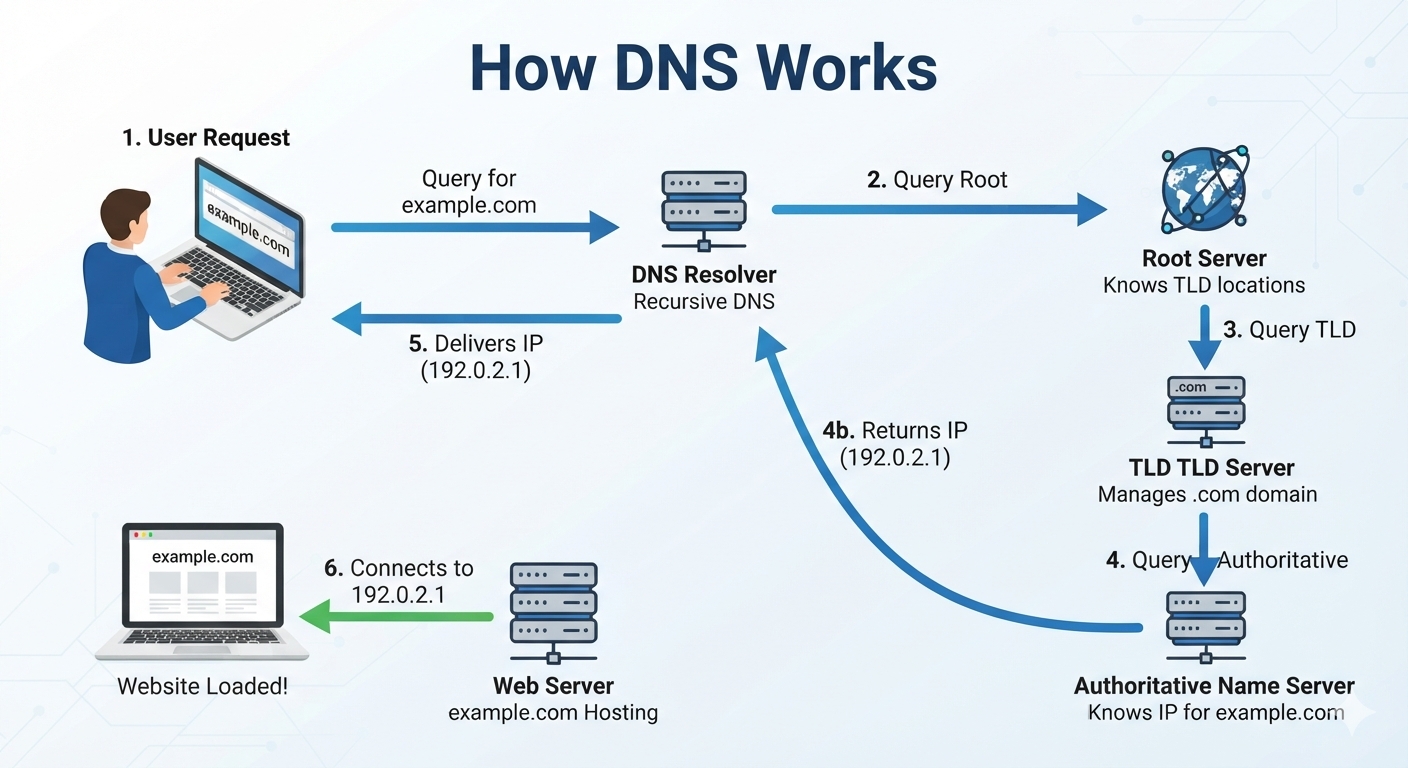
If you see the “DNS Server Not Responding” error while trying to access websites, your computer may be connected to Wi-Fi or Ethernet but unable to translate website names into IP addresses. This can prevent websites, applications, email services, and other online resources from loading correctly.
Fortunately, the problem can usually be fixed with a few straightforward troubleshooting steps.
In this guide, we explain how to fix DNS Server Not Responding on Windows 10 and Windows 11, including how to restart your router, flush the DNS cache, renew your IP address, change DNS servers, check network settings, and identify whether the problem is with your computer, router, ISP, or DNS provider.
What Does “DNS Server Not Responding” Mean?
DNS stands for Domain Name System. It converts human-readable domain names such as example.com into IP addresses that computers use to communicate over the Internet.
When your DNS server does not respond, your computer may still show that it is connected to the network, but websites may fail to open.
You may see messages such as:
- DNS Server Not Responding
- DNS_PROBE_FINISHED_NXDOMAIN
- DNS_PROBE_FINISHED_BAD_CONFIG
- This site can’t be reached
- Server DNS address could not be found
- Can’t find the server
- Internet connected but websites won’t load
DNS problems can be caused by a corrupted DNS cache, incorrect network settings, router problems, ISP issues, unavailable DNS servers, VPN or proxy settings, or incorrect DNS records.
Microsoft recommends checking the network connection, renewing the IP configuration, flushing the DNS cache, checking the configured DNS server, and testing connectivity to the DNS server when troubleshooting these problems.
Common Causes of DNS Server Not Responding
Before changing advanced settings, it helps to understand what may be causing the problem.
1. Temporary router problem
Your router may have lost communication with your ISP’s DNS servers. Restarting the router can sometimes immediately restore DNS resolution.
2. Corrupted DNS cache
Windows stores recently resolved domain names in a local DNS cache. If the cache contains outdated or incorrect information, websites may not resolve properly.
3. Incorrect DNS configuration
Your computer may be using a DNS server that is unavailable or incorrectly configured.
4. ISP DNS problem
Sometimes the DNS servers supplied by your Internet service provider can experience temporary outages or resolution problems.
5. VPN or proxy configuration
VPN applications and manually configured proxy servers can interfere with normal DNS resolution.
6. Firewall or security software
Certain security applications can interfere with DNS traffic or network communication.
7. Incorrect DNS records
If the problem only affects one particular website, the issue may be with that website’s DNS configuration rather than your computer. Missing or incorrect DNS records can prevent a domain from resolving correctly.
How to Fix DNS Server status
Try the following solutions in order. After completing each step, test your Internet connection again.
Method 1: Restart Your Computer and Router
The simplest solution is often the most effective.
- Save your work and restart your computer.
- Turn off your router.
- Wait approximately 30 seconds.
- Turn the router back on.
- Wait until the Internet connection is restored.
- Try opening several websites.
If other devices connected to the same router also cannot access websites, the problem may be with the router, ISP, or DNS service rather than your computer.
If other devices work normally but only one computer has the problem, continue with the Windows troubleshooting steps below.
Method 2: Flush the DNS Cache
One of the most useful solutions for DNS problems is clearing the Windows DNS cache.
Step 1
Open Command Prompt as Administrator.
You can search for:
Command Prompt → Run as administrator
Step 2
Enter:
ipconfig /flushdns
Press Enter.
You should receive a message indicating that the DNS Resolver Cache was successfully flushed.
Microsoft specifically recommends ipconfig /flushdns as part of Windows network troubleshooting.
Step 3
Close Command Prompt and try accessing the website again.
Flushing your local DNS cache only clears DNS information stored on your computer. It does not clear cached DNS information held by upstream DNS resolvers or the website’s authoritative DNS infrastructure.
Method 3: Renew Your IP Address
If flushing DNS does not fix the problem, renew your computer’s IP address.
Open Command Prompt as Administrator and run:
ipconfig /release
Then run:
ipconfig /renew
After the commands finish, test your Internet connection.
Microsoft includes releasing and renewing the IP configuration among its recommended Windows connectivity troubleshooting steps.
Method 4: Reset the Windows Network Stack
You can also reset important Windows networking components.
Open Command Prompt as Administrator and run:
netsh winsock reset
Then run:
netsh int ip reset
Restart your computer after running these commands.
These commands can help when Windows network components or TCP/IP configuration have become corrupted.
Method 5: Change Your DNS Server
If your current DNS server is unavailable, changing to another reliable DNS resolver may solve the problem.
Two commonly used public DNS services are:
Cloudflare DNS
Preferred DNS:
1.1.1.1
Alternate DNS:
1.0.0.1
Google Public DNS
Preferred DNS:
8.8.8.8
Alternate DNS:
8.8.4.4
Microsoft’s Windows networking documentation supports manually specifying preferred and alternate DNS server addresses through the network IP settings.
How to Change DNS in Windows 11
- Open Settings.
- Select Network & Internet.
- Select Wi-Fi or Ethernet, depending on your connection.
- Open your connected network.
- Find IP assignment.
- Select Edit.
- Change the setting from Automatic (DHCP) to Manual.
- Enable IPv4.
- Enter your preferred DNS server.
- Enter your alternate DNS server.
- Save the settings.
Windows also supports DNS over HTTPS on supported configurations, which can encrypt DNS queries between your device and the configured DNS resolver.
Method 6: Check Which DNS Server Your Computer Is Using
You can identify the DNS server configured on your Windows computer by opening Command Prompt as Administrator and entering:
ipconfig /all
Look for:
DNS Servers
You can also use:
ipconfig /all | findstr /c:"DNS Servers"
Microsoft recommends checking the configured DNS server and testing whether the computer can reach it when diagnosing DNS-related connectivity problems.
Method 7: Test DNS Connectivity
Once you know the DNS server address, you can test whether your computer can communicate with it.
For example:
ping 1.1.1.1
You can also test DNS resolution using:
nslookup example.com
If nslookup fails against your configured DNS server but works when using another resolver, your configured DNS service may be the source of the problem.
For more advanced troubleshooting, DNS tools such as dig can be used to compare responses from different DNS resolvers. Cloudflare’s DNS troubleshooting documentation recommends comparing resolution against multiple resolvers when diagnosing DNS resolution problems.
Method 8: Disable VPN and Proxy Settings
A VPN or proxy can sometimes interfere with DNS resolution.
Check Windows Proxy
Go to:
Settings → Network & Internet → Proxy
Check whether a manual proxy has been configured.
If you do not need the proxy, disable it and test the connection again.
Microsoft also recommends checking proxy settings when troubleshooting Windows connectivity problems.
If you use a VPN, disconnect from it temporarily and test the website again.
If the website works after disconnecting the VPN, the VPN’s DNS configuration may require further investigation.
Method 9: Check the Hosts File
Windows has a local Hosts file that can override normal DNS resolution.
The file is typically located at:
C:\Windows\System32\drivers\etc\hosts
Incorrect entries in the Hosts file can prevent particular websites from resolving correctly.
Microsoft notes that modifications to the Hosts file can override normal name resolution and cause connectivity problems.
If you suspect the Hosts file has been modified, review it carefully or restore it to the default configuration.
Important: Do not delete or modify Hosts entries unless you understand what they do. Some legitimate software and network configurations may intentionally use this file.
Method 10: Run the Windows Network Troubleshooter
Windows 11 includes automated network troubleshooting through the Get Help application.
You can use Windows troubleshooting tools to identify common network and Internet connectivity problems.
Microsoft recommends running the Windows network troubleshooting process when you experience problems connecting to the Internet.
If Windows identifies a DNS or network configuration problem, follow the recommended repair steps.
Method 11: Try Another Device
This is an important troubleshooting step.
Connect another laptop, desktop, smartphone, or tablet to the same network.
If every device has the problem
The issue may be related to:
- Router
- ISP
- DNS provider
- Network configuration
- Internet service outage
If only one device has the problem
The issue is more likely related to:
- Windows configuration
- DNS cache
- Network adapter
- VPN
- Proxy
- Firewall
- Local DNS settings
This simple test can significantly narrow down the source of the problem.
Method 12: Check Whether Only One Website Is Affected
If Google, Microsoft, YouTube, and other websites work but one particular domain does not, the problem may not be your computer.
The website itself may have:
- Incorrect DNS records
- Missing A or AAAA records
- Incorrect CNAME configuration
- Nameserver problems
- DNSSEC problems
- Expired domain
- DNS propagation or caching issues
Cloudflare’s DNS documentation identifies missing DNS records, incorrect records, nameserver configuration, and cached DNS responses among possible causes of domain-resolution problems.
In this situation, changing the DNS server on your computer may not permanently fix the website.
How to Fix DNS Server Not Responding on Windows 11
For Windows 11 users, the fastest troubleshooting sequence is:
- Restart the computer.
- Restart the router.
- Run Windows network troubleshooting.
- Open Command Prompt as Administrator.
- Run:
ipconfig /flushdns
- Run:
ipconfig /release
- Run:
ipconfig /renew
- Run:
netsh winsock reset
- Restart the computer.
- Check your DNS server settings.
- Temporarily test another DNS resolver.
- Disable VPN or proxy settings if applicable.
How to Fix DNS Server Not Responding on Windows 10
The same fundamental troubleshooting methods apply to Windows 10:
- Restart your router.
- Restart your computer.
- Flush DNS.
- Renew your IP address.
- Reset Winsock.
- Check DNS configuration.
- Change DNS servers.
- Disable proxy/VPN temporarily.
- Test another device.
- Check whether the issue affects one website or all websites.
However, Windows 10 reached end of support on October 14, 2025, so organizations still operating Windows 10 should consider upgrading supported systems to Windows 11 where appropriate.
Quick DNS Troubleshooting Commands
Here is a useful collection of Windows commands for diagnosing DNS and network problems:
ipconfig /all
Displays network configuration and DNS server information.
ipconfig /flushdns
Clears the local DNS resolver cache.
ipconfig /release
Releases the current DHCP-assigned IP configuration.
ipconfig /renew
Requests a new IP configuration from DHCP.
nslookup example.com
Tests DNS name resolution.
ping 1.1.1.1
Tests basic IP connectivity to Cloudflare’s resolver.
netsh winsock reset
Resets the Windows Winsock catalog.
netsh int ip reset
Resets TCP/IP configuration.
When Should You Contact an IT Professional?
If you have tried the troubleshooting methods above and DNS problems continue, the issue may require deeper network investigation.
Professional IT support may be appropriate when:
- Multiple computers cannot resolve websites.
- Business applications cannot connect.
- Internal DNS servers are failing.
- Active Directory DNS is affected.
- Windows Server is being used as a DNS server.
- DNS records need to be corrected.
- DNSSEC is causing resolution problems.
- Network switches, firewalls, or routers may be involved.
- DNS problems occur across an office network.
- Internet connectivity repeatedly drops.
- Customers or employees cannot access critical business services.
For businesses in the UAE, proper network infrastructure, DNS configuration, firewall configuration, and server maintenance are important for maintaining reliable connectivity.
Frequently Asked Questions
How do I fix DNS server not responding quickly?
Start by restarting your router and computer. Then open Command Prompt as Administrator and run:
ipconfig /flushdns
ipconfig /release
ipconfig /renew
If the problem continues, check or change your DNS server.
Does flushing DNS fix Internet problems?
Flushing DNS can fix problems caused by outdated or corrupted DNS information stored locally on your computer. However, it will not fix every Internet or DNS problem.
What is the best DNS server to use?
There is no single DNS provider that is best for every network. Popular public DNS resolvers include Cloudflare’s 1.1.1.1 and Google’s 8.8.8.8. You should choose a reliable resolver appropriate for your network and requirements.
Why does DNS work on my phone but not my computer?
Your phone and computer may be using different DNS servers or different network configurations. The computer could also have a corrupted DNS cache, incorrect proxy/VPN configuration, or a network adapter problem.
Why does only one website show a DNS error?
If other websites work normally, the problem may be specific to the affected domain. The domain could have incorrect or missing DNS records, nameserver problems, DNSSEC issues, or cached DNS information.
Does changing DNS improve Internet speed?
Changing DNS can sometimes improve how quickly domain names are resolved, but it does not necessarily increase your Internet connection’s underlying bandwidth. The benefit depends on your current DNS provider, network location, and resolver performance.
 Share
Share