 Login/Register


Procedure to reset a Cisco 2960 (or 2950) password without losing the switch configuration.
Connect the blue console cable, and open a TTY session: 9600,8,n,1.
– Hitting return should give a prompt, confirming the connection.
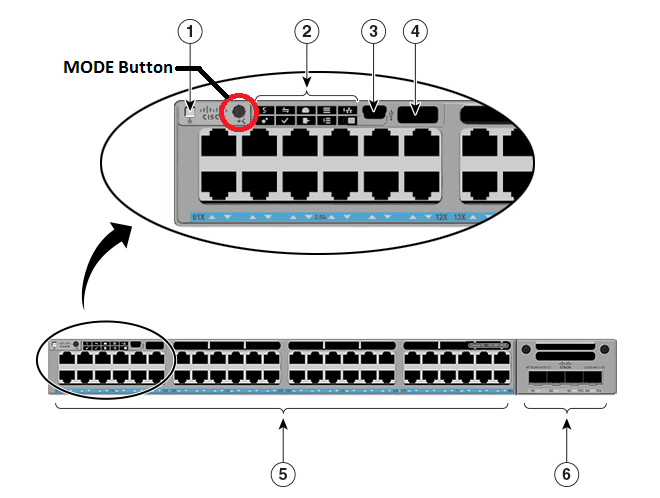
Press and hold the front panel MODE button, and power-up the switch.
– After a few seconds, the following should display. Release the MODE button.
The system has been interrupted prior to initializing the
flash filesystem.  The following commands will initialize
the flash filesystem, and finish loading the operating
system software:

    flash_init
    load_helper
    boot
At the prompt, enter the following command:
switch: flash_init
Initializing Flash...
List the files in the flash directory:
switch: dir flash:
Directory of flash:/

2    -rwx  5         <date>               private-config.text
4    -rwx  5048591   <date>               c2960-lanbasek9-mz.122-25.SED.bin
5    drwx  192       <date>               c2960-lanbase-mz.122-25.SEE2
620  -rwx  2061      <date>               config.text

19752960 bytes available (12761088 bytes used)
Rename the flash file config.text to config.text.old, and re-boot:
switch: rename flash:config.text flash:config.text.old

switch: boot
Loading "flash:c2960-lanbasek9-mz.122-25.SED.bin"...@@@@@@@@@@@@@@@@@@@@@@@@@@@
@@@@@@@@@@@@@@@@@@@@@@@@@@@@@@@@@@@@@@@@@@@@@@@@@@@@@@@@@@@@@@@@@@@@@@@@@@@@@@@
When the switch reboots, it will launch the ‘System Configuration Dialog’, enter n to exit!
Rename the old configuration file back to config.text, and copy it into memory.
Switch>en
Switch#rename flash:config.text.old flash:config.text
Switch#copy flash:config.text system:running-config
With the old configuration restored, we can now change the password, and save.
Switch#config t
Enter configuration commands, one per line.  End with CNTL/Z.
Switch(config)#enable secret newpassword
Switch(config)#end
Switch#wr mem
Password Recovery on Cisco Switch 2960X
Forgot the password for your Cisco Catalyst 2960X switch? You can recover access by connecting to the switch through the console port and interrupting the normal boot process. This method allows you to bypass the startup configuration, enter privileged EXEC mode, and create a new password without erasing the switch configuration.
This guide explains the password recovery procedure for a Cisco Catalyst 2960X step by step.
What You Need Before Starting
Before performing password recovery, make sure you have:
- Cisco Catalyst 2960X switch
- Console cable
- Computer with a terminal application such as PuTTY or Tera Term
- Physical access to the switch
- Console access
- Permission to perform the recovery on the switch
Important: Password recovery requires physical or console-level access to the switch. Perform this procedure only on equipment you are authorized to manage.
Step 1: Connect to the Cisco 2960X Console
Connect your computer to the console port of the Cisco 2960X using the appropriate console cable.
Open your terminal application and select the correct COM port.
Typical console settings are:
- Baud rate: 9600
- Data bits: 8
- Parity: None
- Stop bits: 1
- Flow control: None
Step 2: Power Cycle the Switch
Turn the Cisco 2960X switch off and then turn it back on.
Watch the console terminal carefully while the switch starts.
You need to interrupt the normal boot process before the switch loads the startup configuration.
Step 3: Enter the Switch Boot Loader
When the switch begins booting, press and hold the Mode button on the front of the switch.
Continue holding the button until you see the switch enter the boot loader prompt.
You should eventually see a prompt similar to:
switch:
Release the Mode button once you reach the boot loader prompt.
Step 4: Initialize Flash
At the switch: prompt, initialize the flash file system:
switch: flash_init
Wait for the command to complete.
Then check the contents of flash:
switch: dir flash:
You should see files including the configuration file, depending on the switch’s configuration.
Step 5: Rename the Configuration File
The startup configuration normally contains the existing passwords.
Rename the configuration file so that the switch does not load it during the initial boot.
For example:
switch: rename flash:config.text flash:config.old
The exact filename can be confirmed using:
switch: dir flash:
Step 6: Boot the Switch
Start the switch normally:
switch: boot
The switch will boot without loading the original startup configuration.
When asked whether you want to enter the initial configuration dialog, answer:
no
You should now reach the switch prompt.
Step 7: Enter Privileged EXEC Mode
Enter privileged EXEC mode:
Switch> enable
You should now see:
Switch#
At this point, the original configuration has not been loaded, but it is still preserved in flash under the renamed filename.
Step 8: Restore the Original Configuration
Rename the configuration file back to its original name:
Switch# rename flash:config.old flash:config.text
Then copy the saved configuration into running memory:
Switch# copy flash:config.text system:running-config
Alternatively, depending on the IOS version, you may use:
Switch# copy startup-config running-config
The important point is to load the old configuration without rebooting before changing the password.
Step 9: Change the Password
After restoring the configuration, you should have access to the switch.
Change the enable secret:
Switch# configure terminal
Switch(config)# enable secret NewStrongPassword
Replace NewStrongPassword with your desired password.
If local user authentication is configured, you may also need to change the local administrator password:
Switch(config)# username admin privilege 15 secret NewStrongPassword
If an existing username is being used, modify that account instead of creating another one.
Step 10: Check the Configuration
Verify the configuration:
Switch# show running-config
Check the configured authentication settings and confirm that the new credentials are present.
You can also check the local users with:
Switch# show running-config | include username
Step 11: Save the Configuration
Once you have confirmed that the new password works, save the configuration:
Switch# copy running-config startup-config
or:
Switch# write memory
You should receive a confirmation that the configuration has been saved.
Step 12: Test the New Password
Log out:
Switch# exit
Then reconnect and test the new credentials.
If you use console authentication, SSH, or Telnet, test the relevant login method before considering the recovery complete.
Important Cisco 2960X Password Recovery Notes
Password recovery on a Cisco 2960X normally requires physical console access because the boot process must be interrupted.
Do not simply erase the configuration unless you intentionally want to perform a factory reset.
The password recovery method described above is useful because it can preserve the existing switch configuration, including items such as:
- VLAN configuration
- Interface configuration
- Trunk configuration
- Spanning Tree settings
- EtherChannel configuration
- Management IP address
- SSH configuration
- SNMP configuration
- Access control settings
- Routing-related configuration where applicable
What If the Configuration Is Not Restored?
If the configuration does not appear after booting, check the files in flash:
Switch# dir flash:
Look for the configuration file that was renamed during the recovery procedure.
You can also verify the running configuration:
Switch# show running-config
If the configuration was successfully copied into running memory, the original VLANs, interfaces, and other settings should become visible.
Password Recovery vs Factory Reset
These are different procedures.
Password recovery attempts to regain administrative access while preserving the existing configuration.
Factory reset removes the configuration and returns the switch toward its default state.
If the switch is already deployed in a production network, password recovery is normally preferable to an unnecessary factory reset.
Frequently Asked Questions
How do I recover a forgotten password on a Cisco 2960X?
Connect through the console port, interrupt the boot process using the Mode button, initialize flash, temporarily rename the configuration file, boot the switch, restore the configuration, and then change the password.
Does Cisco 2960X password recovery erase the configuration?
Not necessarily. The recovery procedure can preserve the configuration by temporarily renaming the configuration file rather than deleting it.
What cable is required for Cisco 2960X password recovery?
You need a console connection to the switch. Depending on your equipment, this may involve a traditional Cisco console cable or an appropriate USB console connection.
Can I recover a Cisco 2960X password remotely?
Normally, the standard password-recovery procedure requires console-level access because you must interrupt the boot process.
Will VLANs be lost during password recovery?
If you follow the configuration-preserving recovery procedure correctly, the VLAN and switch configuration should remain intact.
What happens if I erase the startup configuration?
Erasing the startup configuration is a much more destructive step and can remove important network settings. Avoid doing this unless you intentionally want to reset the switch.
Final Recommendation
For a production Cisco Catalyst 2960X, always back up the configuration whenever possible and carefully verify the flash files before renaming or deleting anything.
Password recovery should be performed only on a switch you are authorized to administer. After recovering access, configure a strong password and save the configuration securely.
 Share
Share