 Login/Register


Installing CUCM on a VM
Installing CUCM on a VM is a common way to deploy Cisco Unified Communications Manager (CUCM) in a virtualized environment. A virtual CUCM installation can simplify server deployment, testing, maintenance, backup, and resource management.
This guide explains the basic process for installing CUCM on a VM, including preparing the VMware environment, creating the virtual machine, mounting the CUCM installation ISO, configuring network settings, and completing the initial CUCM installation.
Important: Always verify the supported virtualization platform, virtual machine specifications, and CUCM version against Cisco’s current compatibility documentation before deploying CUCM in production.
- Logon to vmware (root/password)
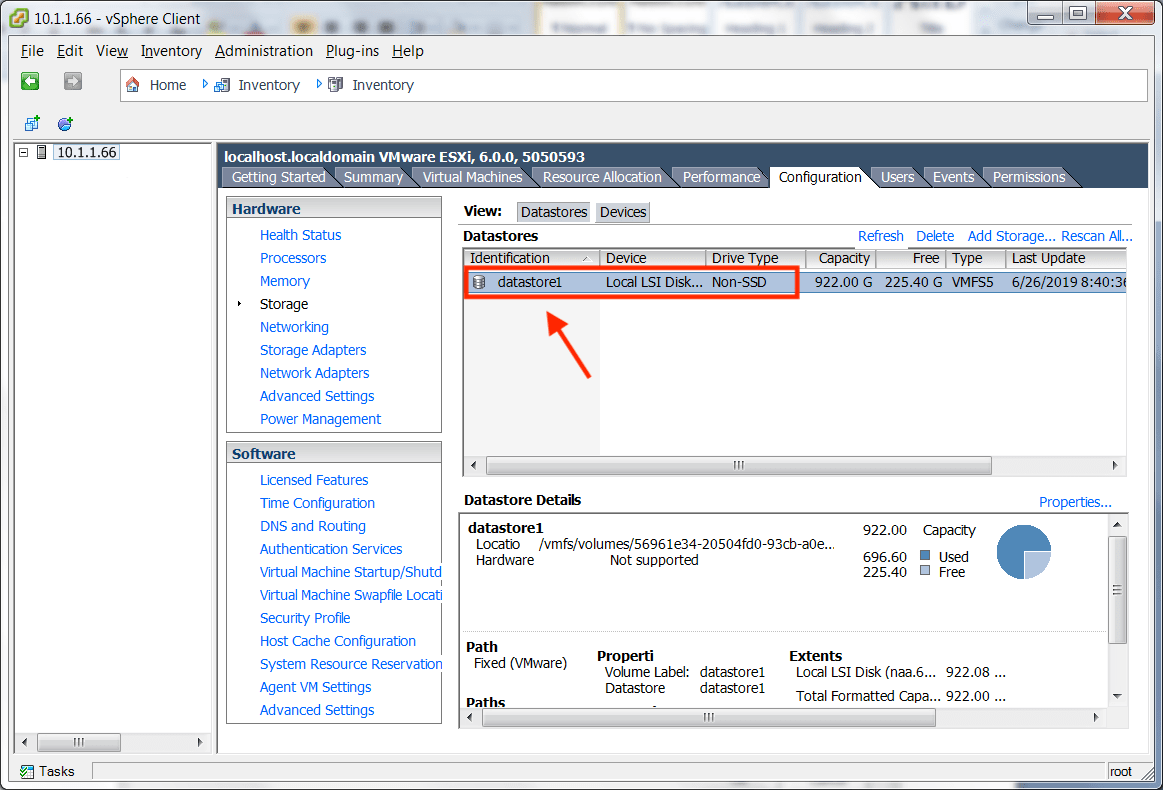
- Upload images to server datastore:
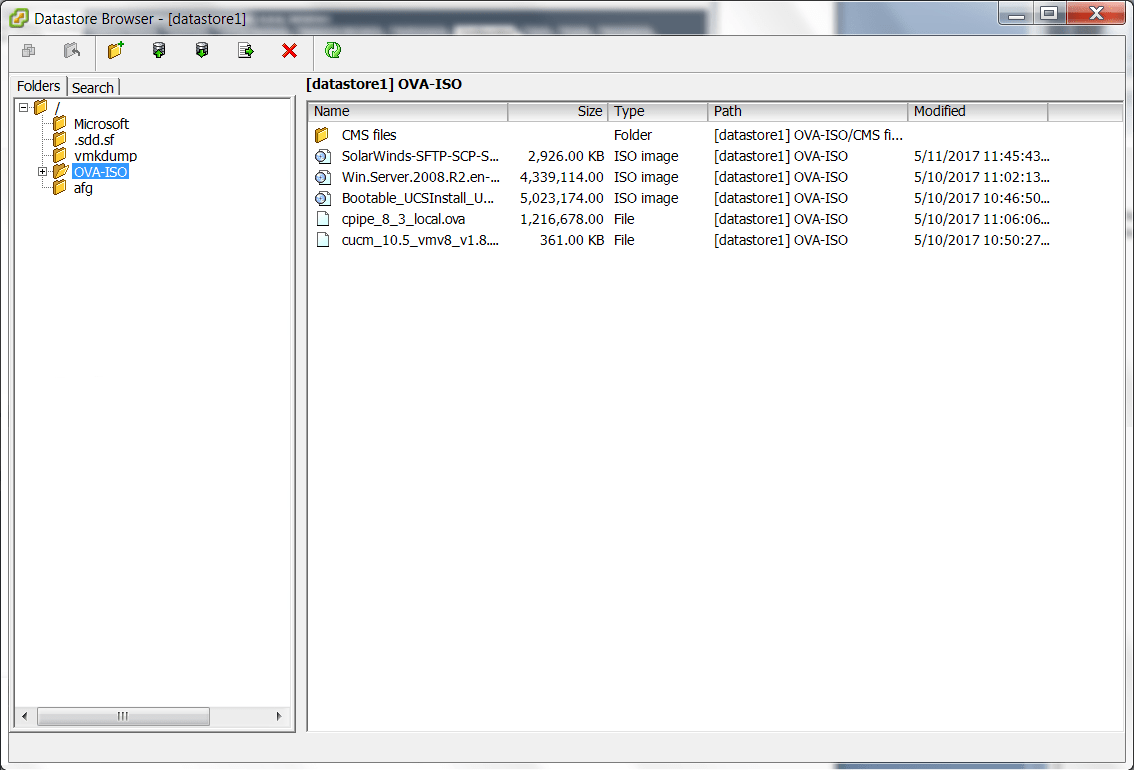
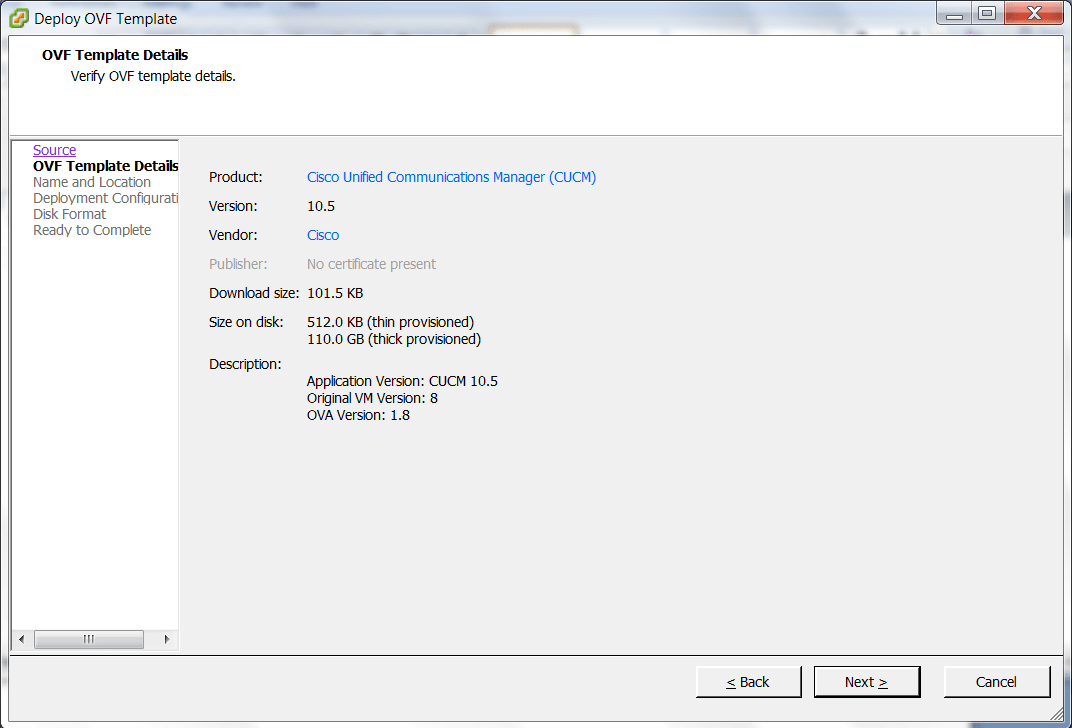
– Right click “datastore1”, browse to the OVA-ISO folder. Upload files here. - File ➤ Deploy OVF Template, eg: \OVA-ISO\cucm_10.5_vmv8_v1.8.ova
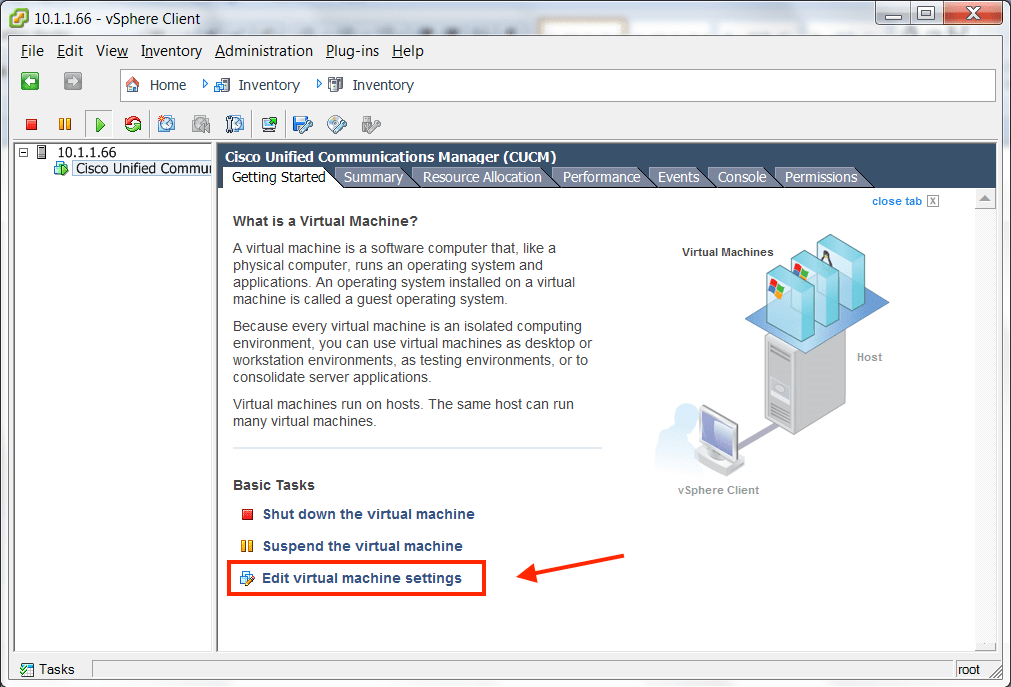
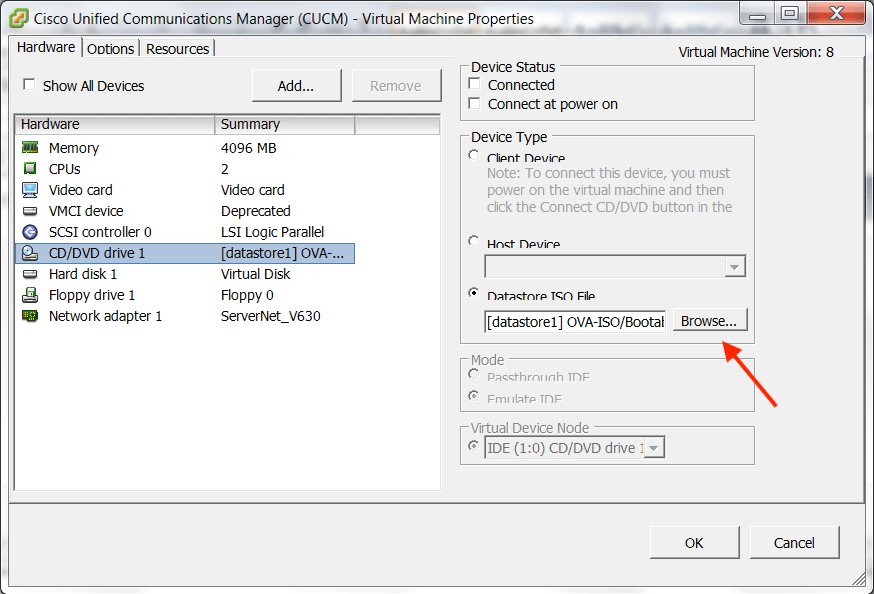
- Right click virtual machine, EDIT virtual machine settings, and insert a Boot CD!
– the ISO image is the same for UNITY and CALL MANAGER, eg:
\OVA-ISO\Bootable_UCSInstall_UCOS_10.5.2.11900-3.sgn.iso
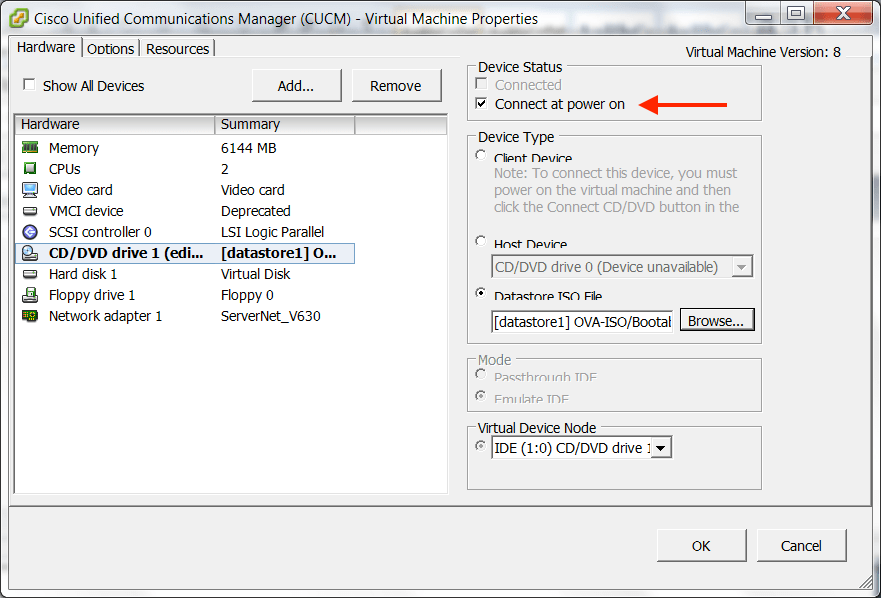
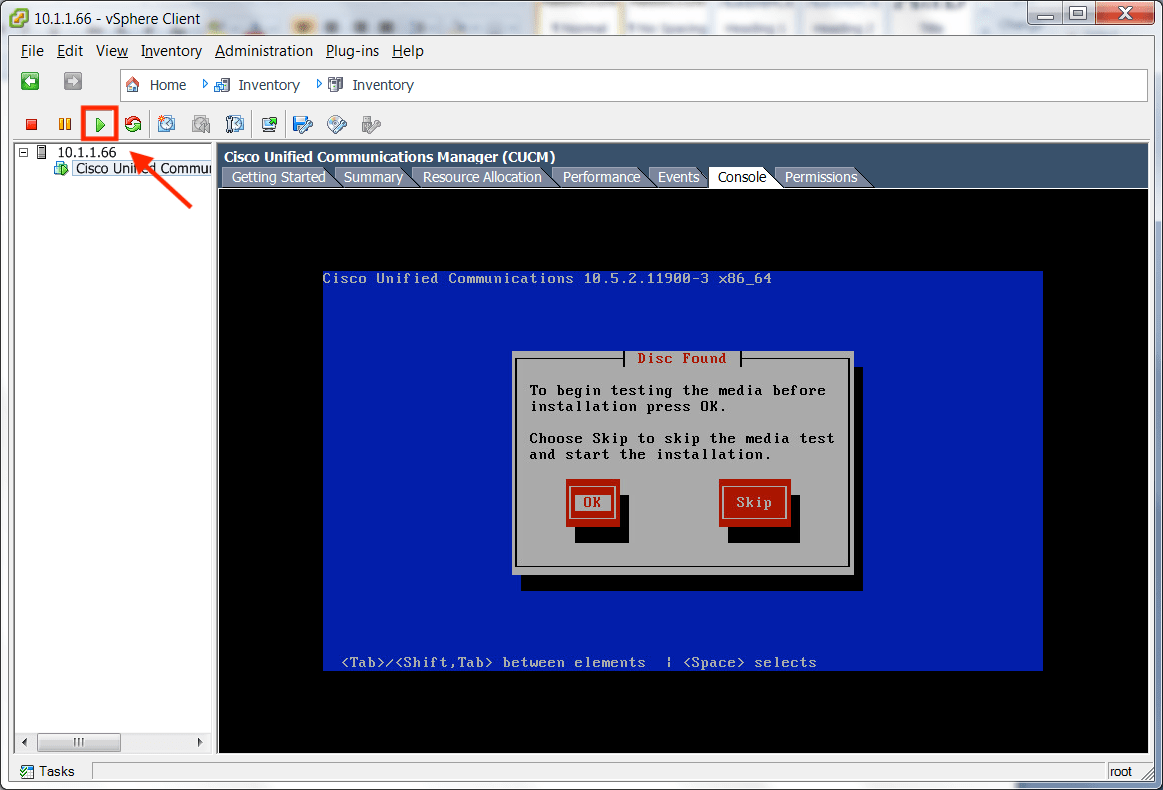
Make sure to check “Connect at power on” - Power machine on (press play), and select the “console” tab to watch progress.
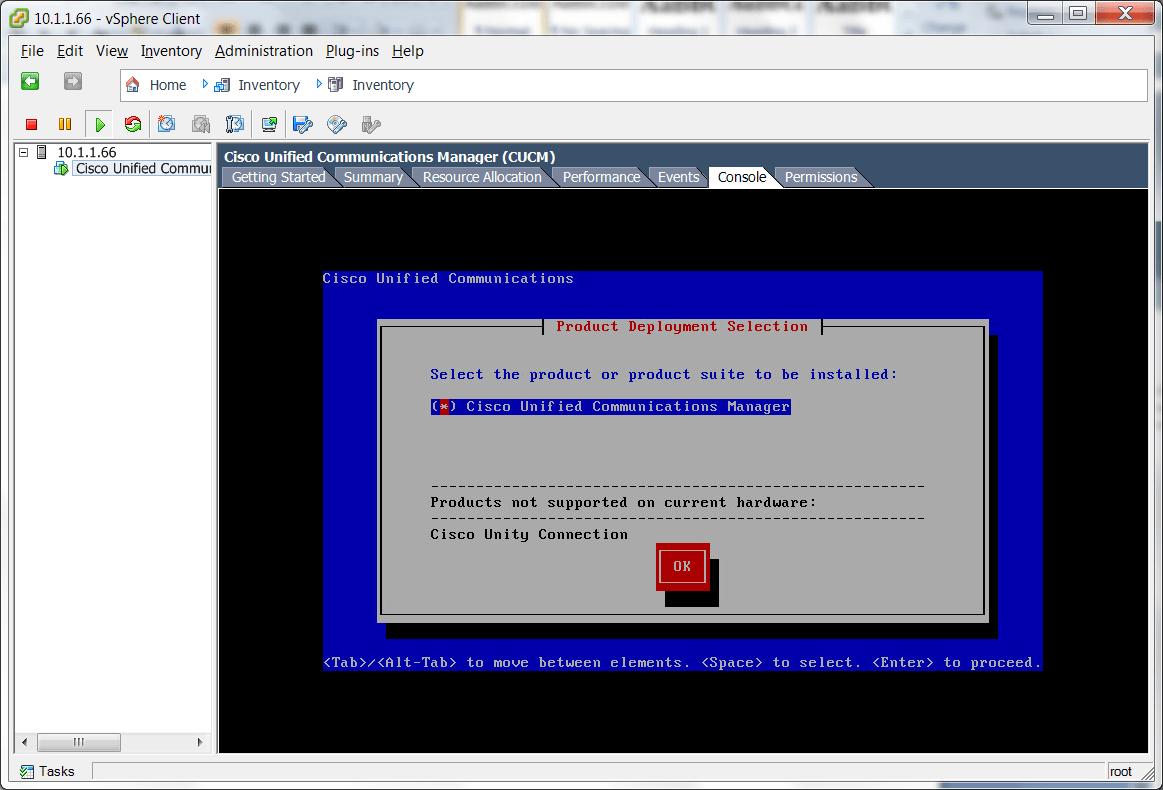
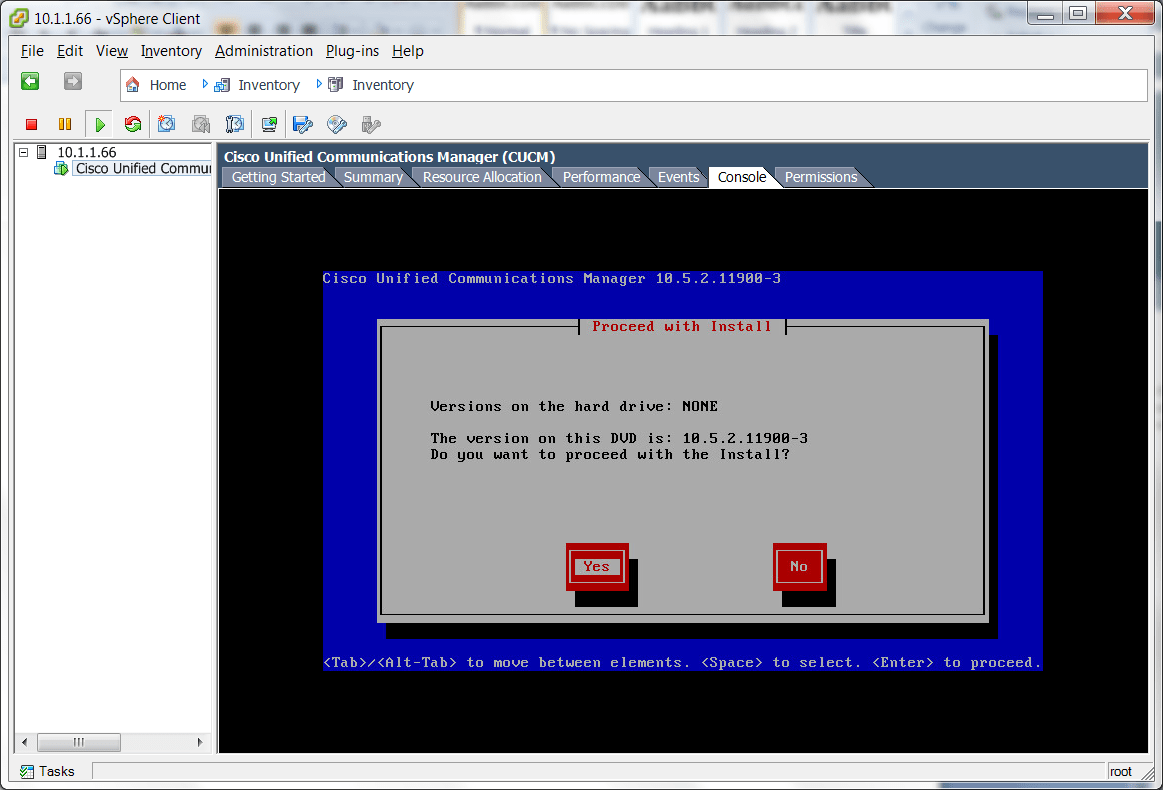
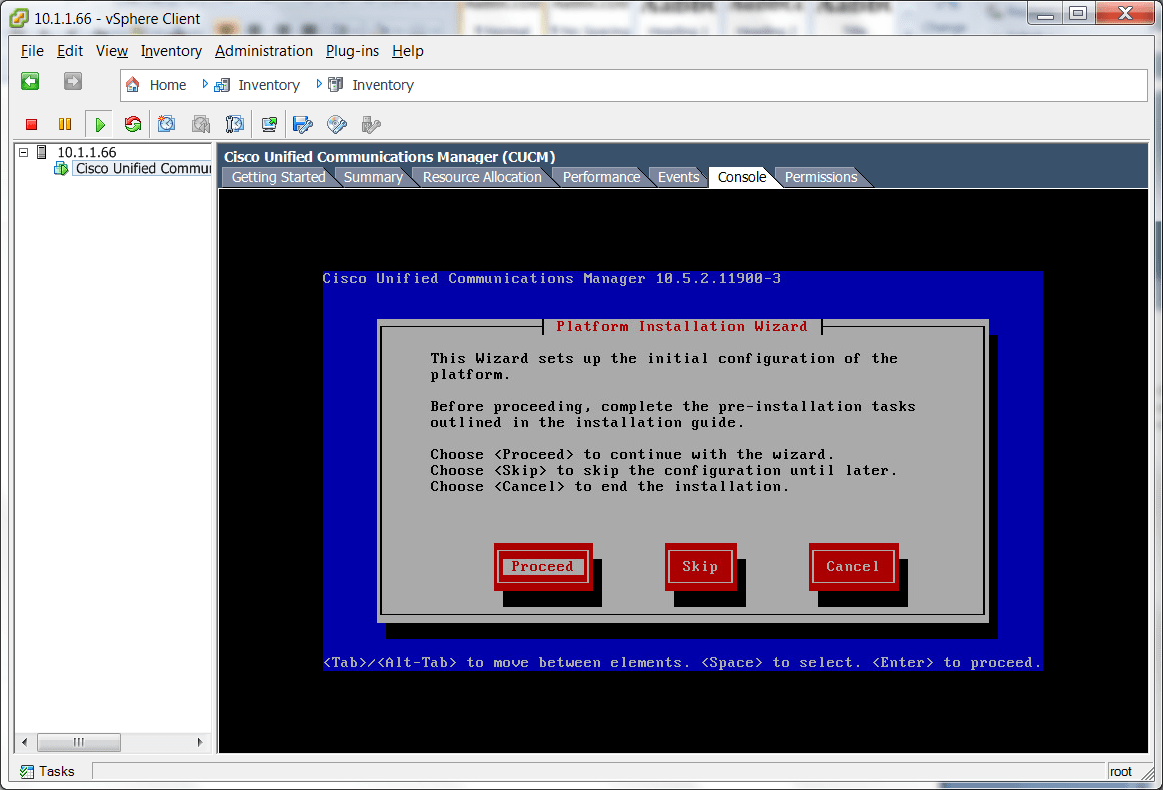
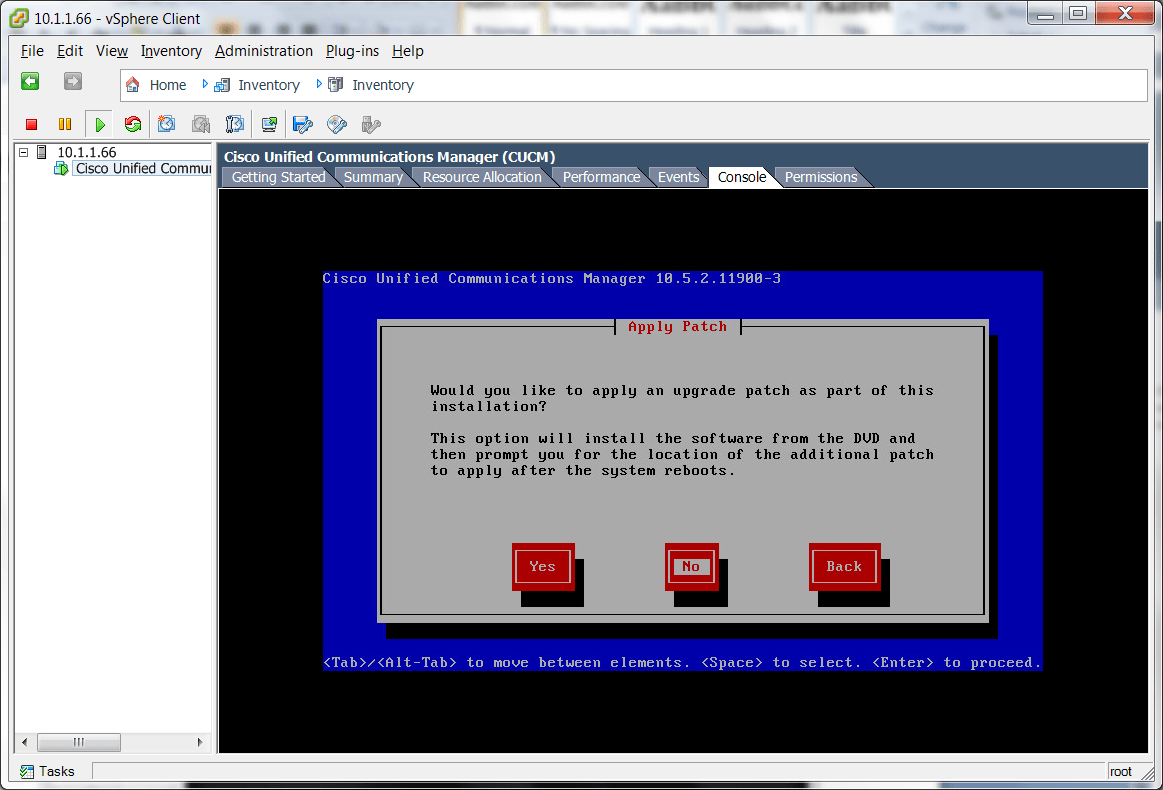
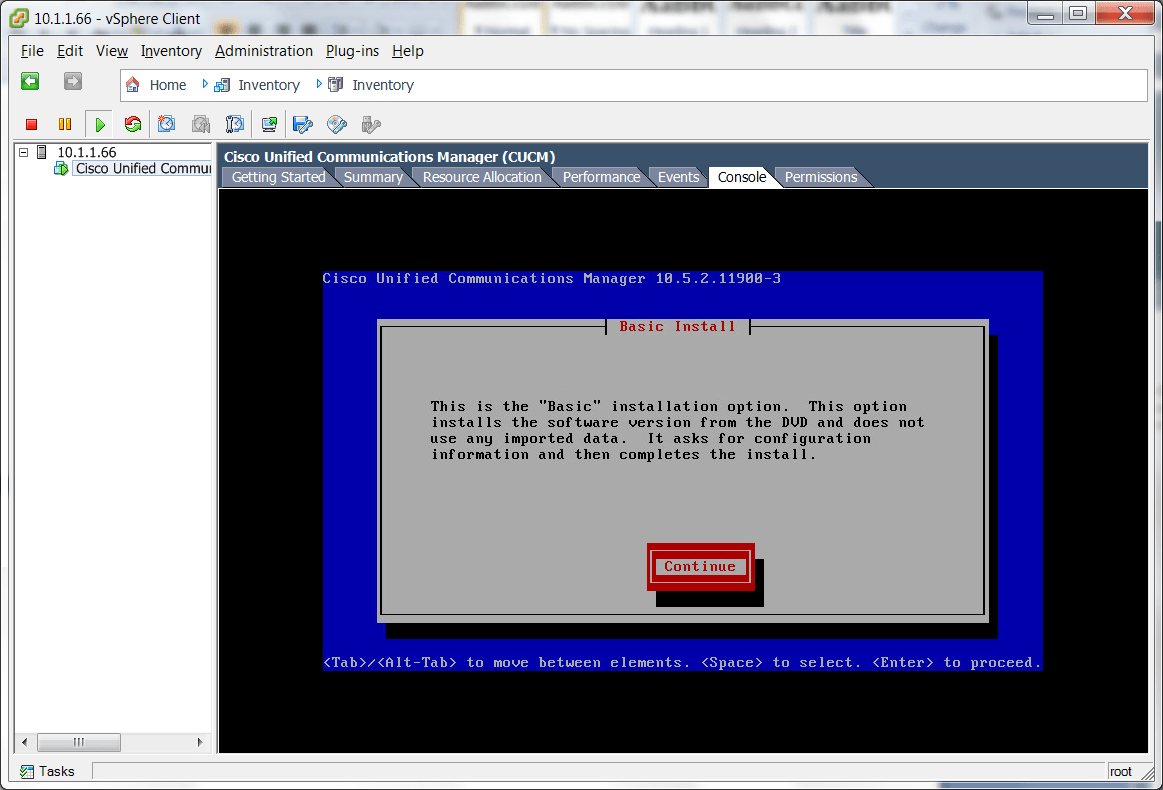
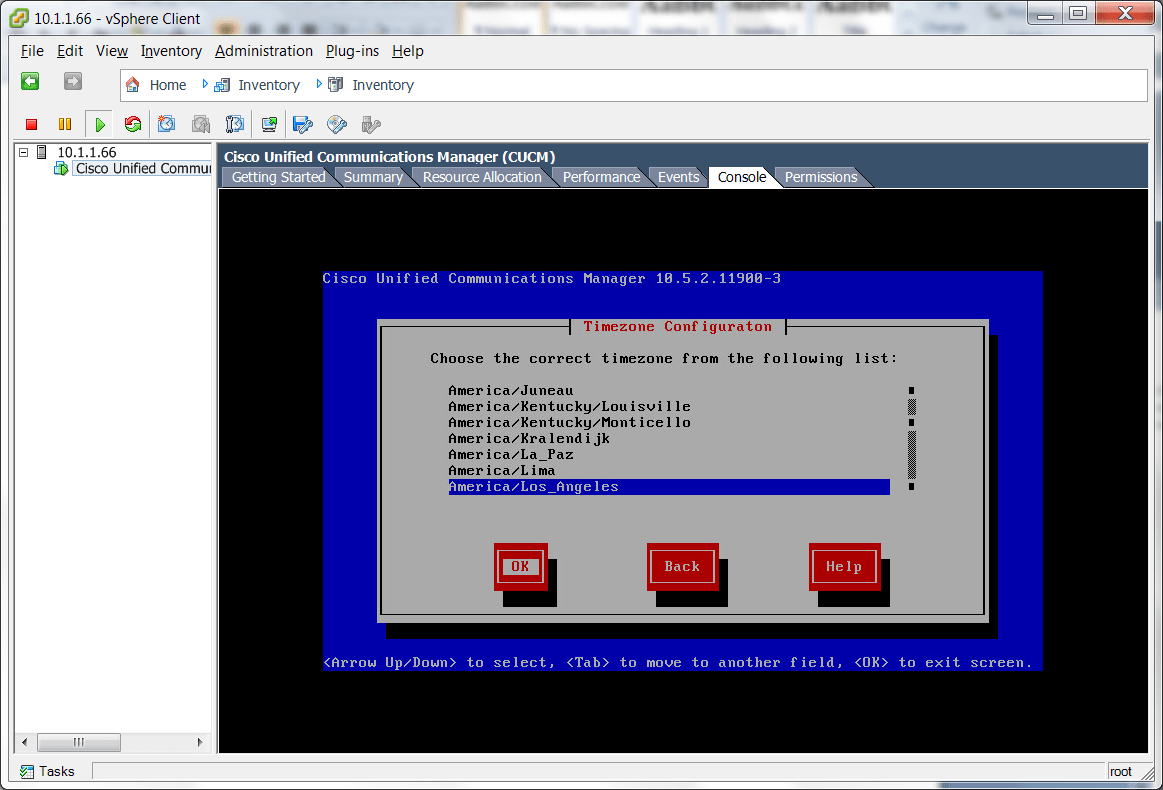
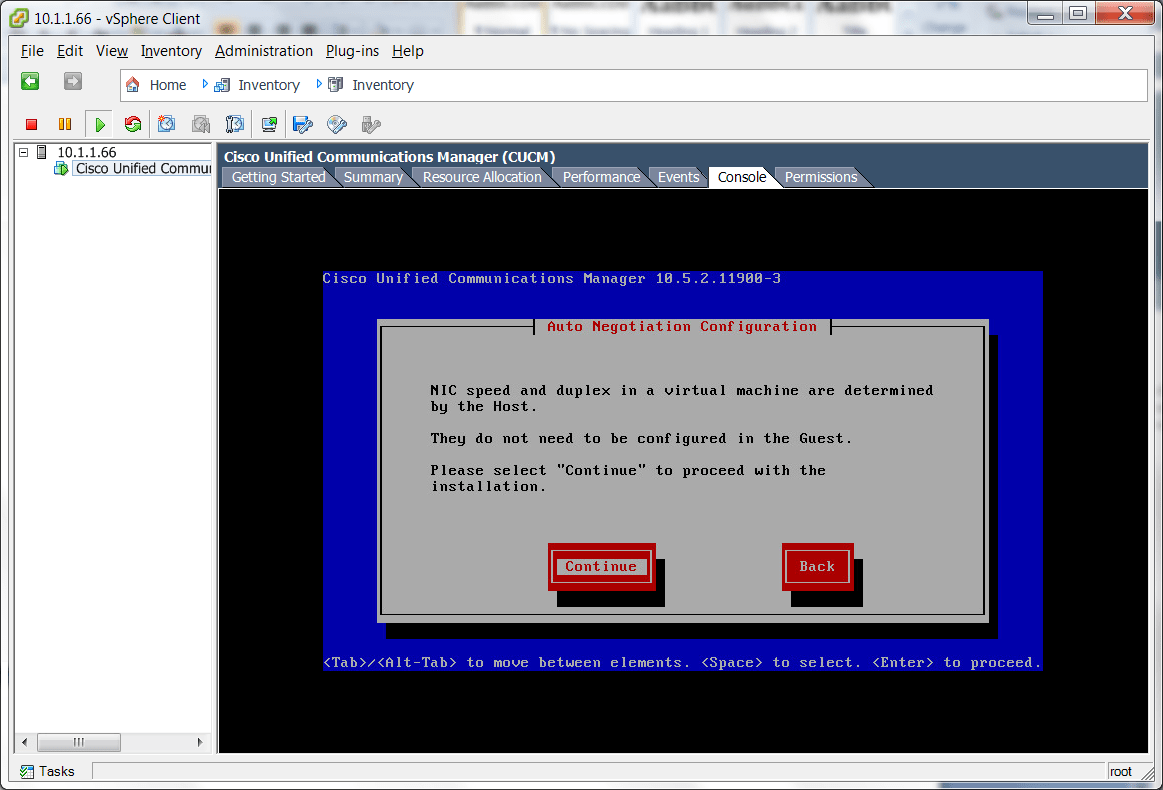
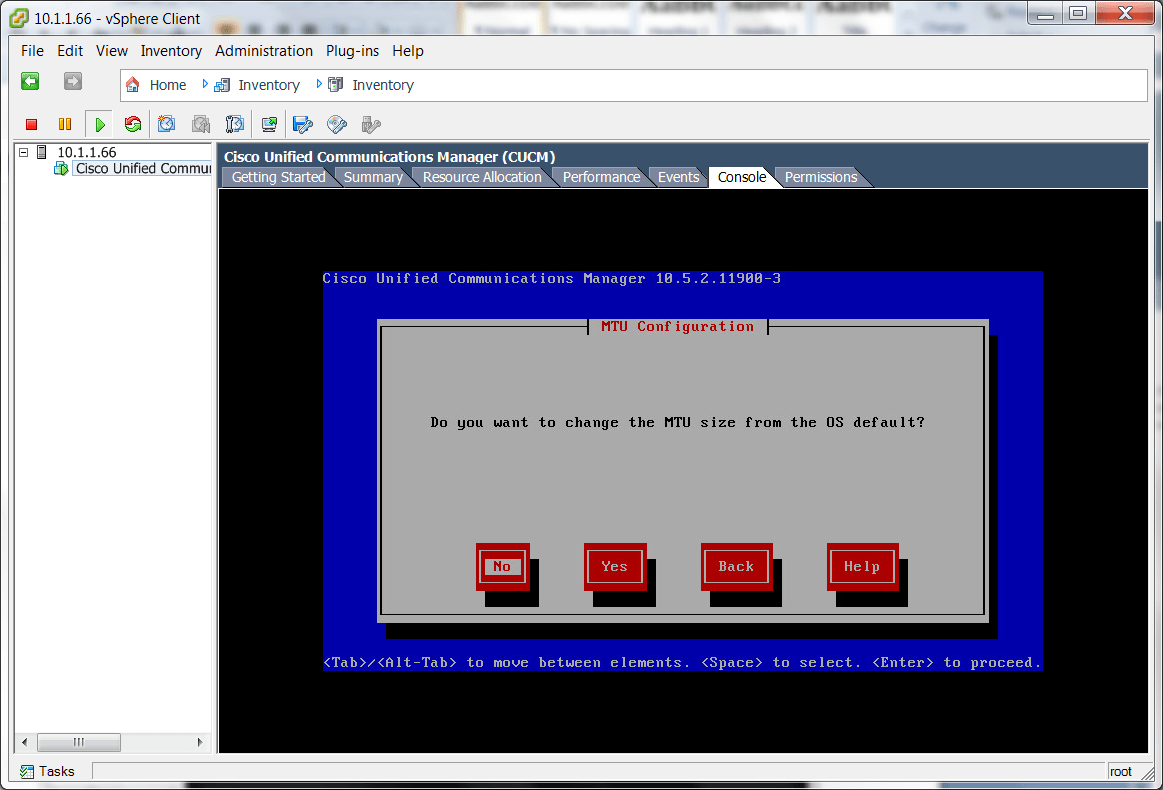
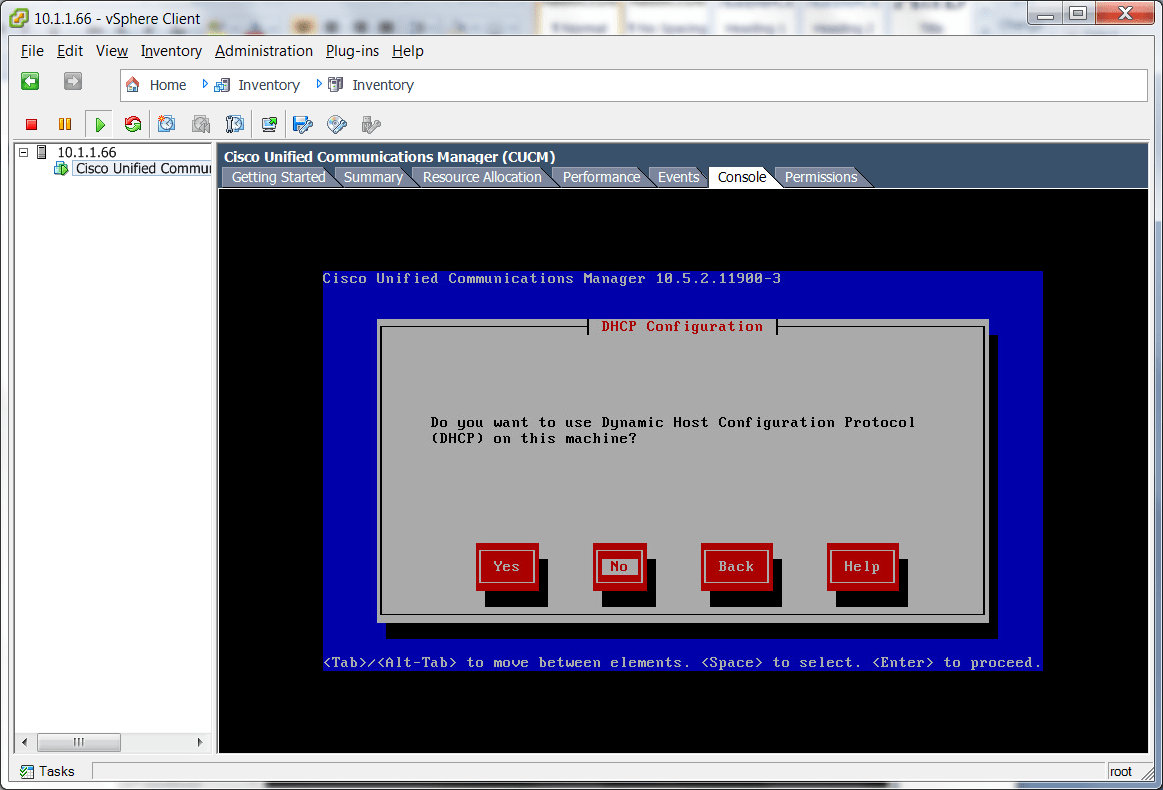
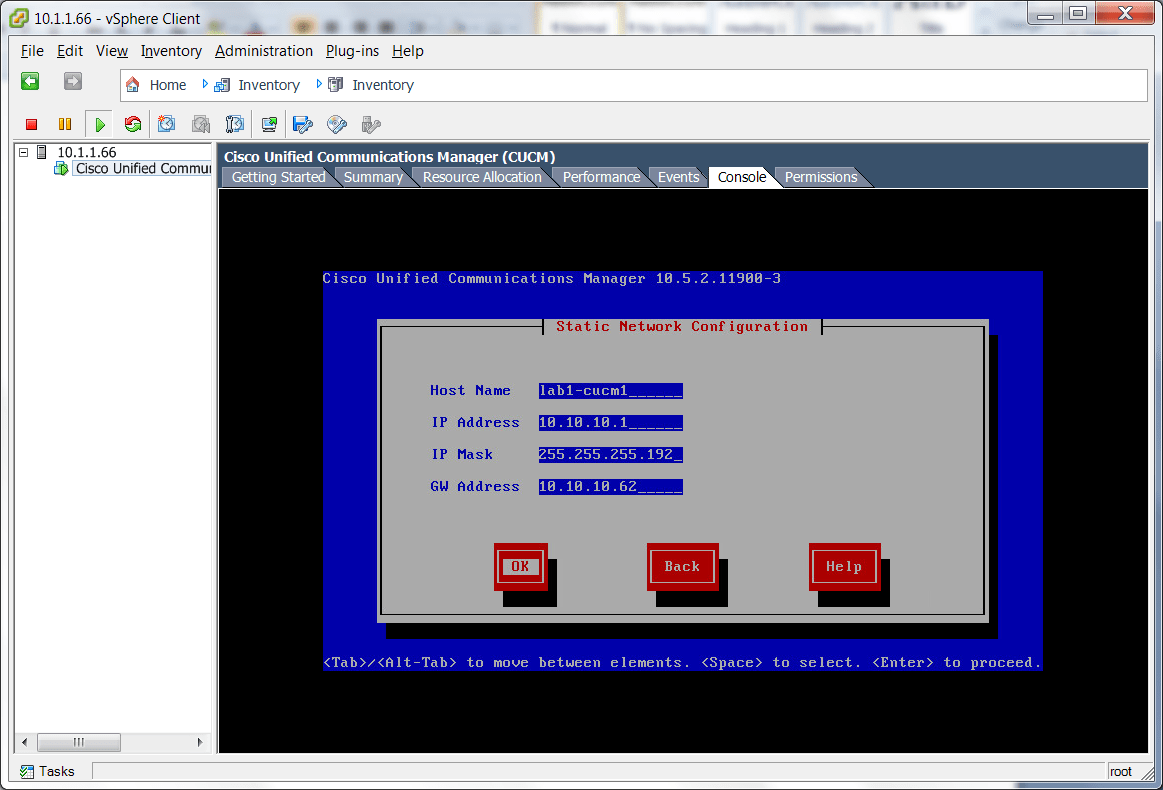
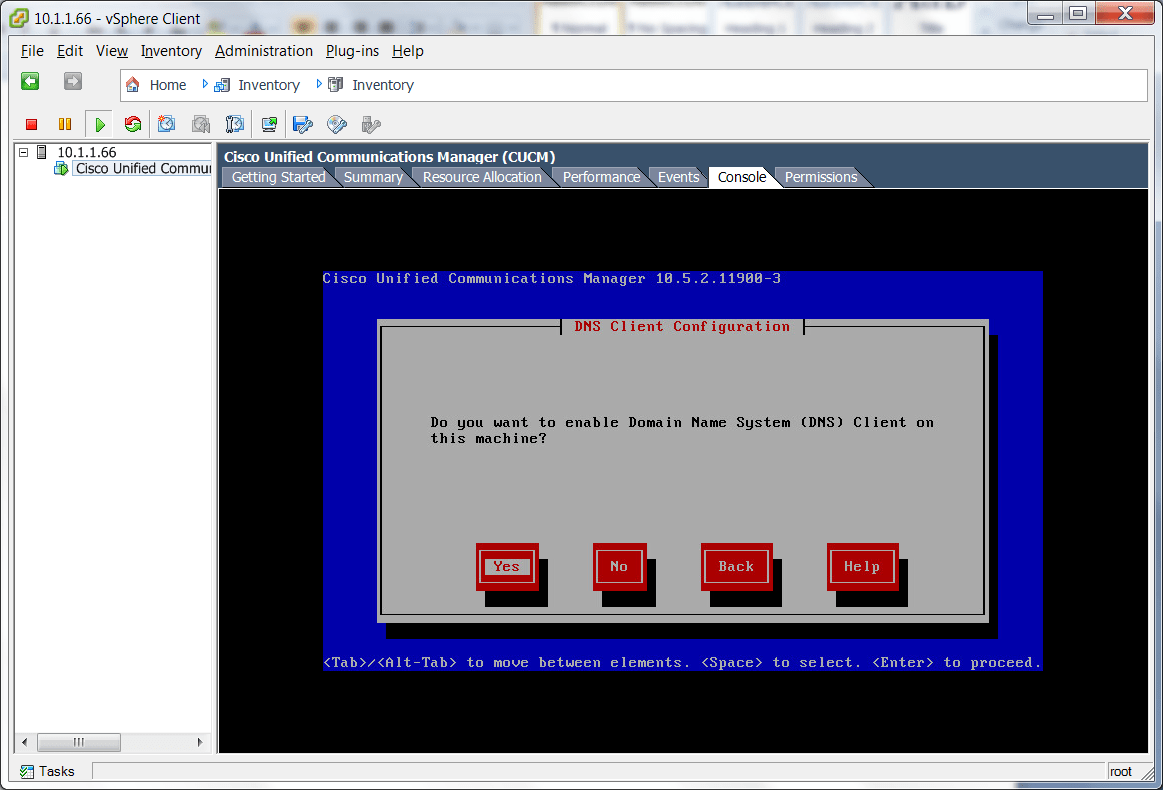
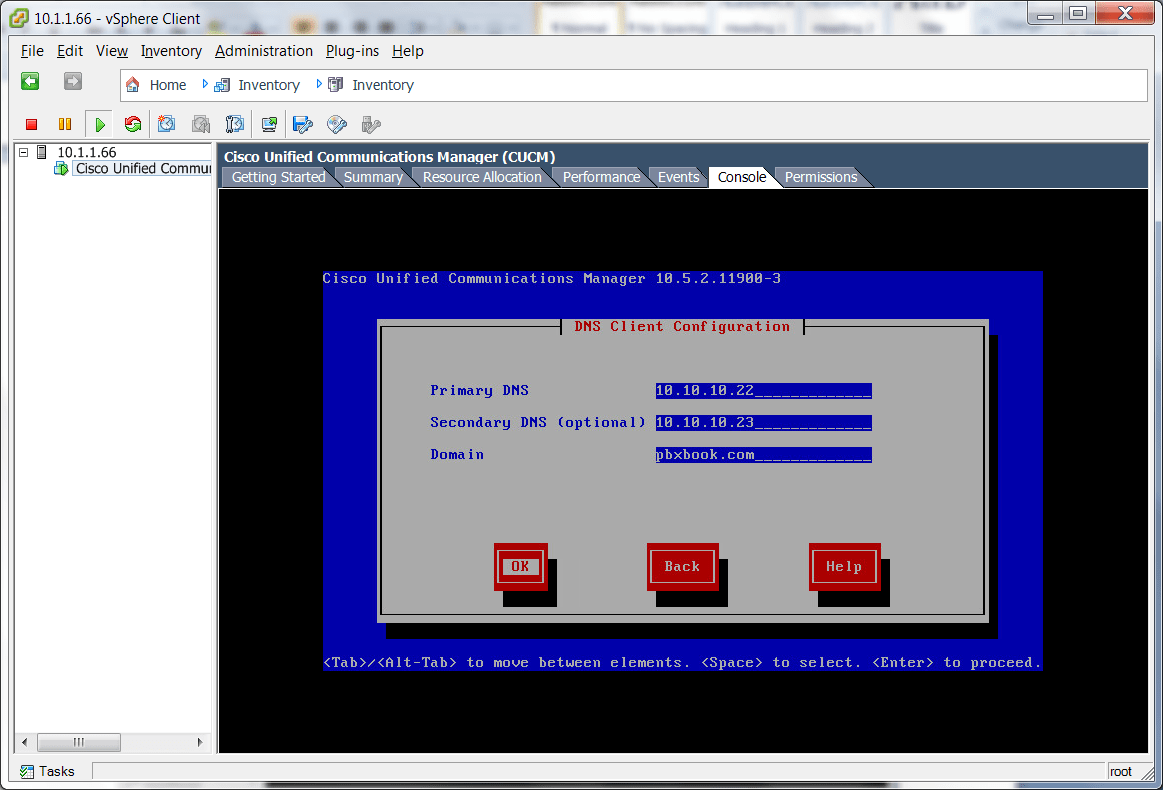
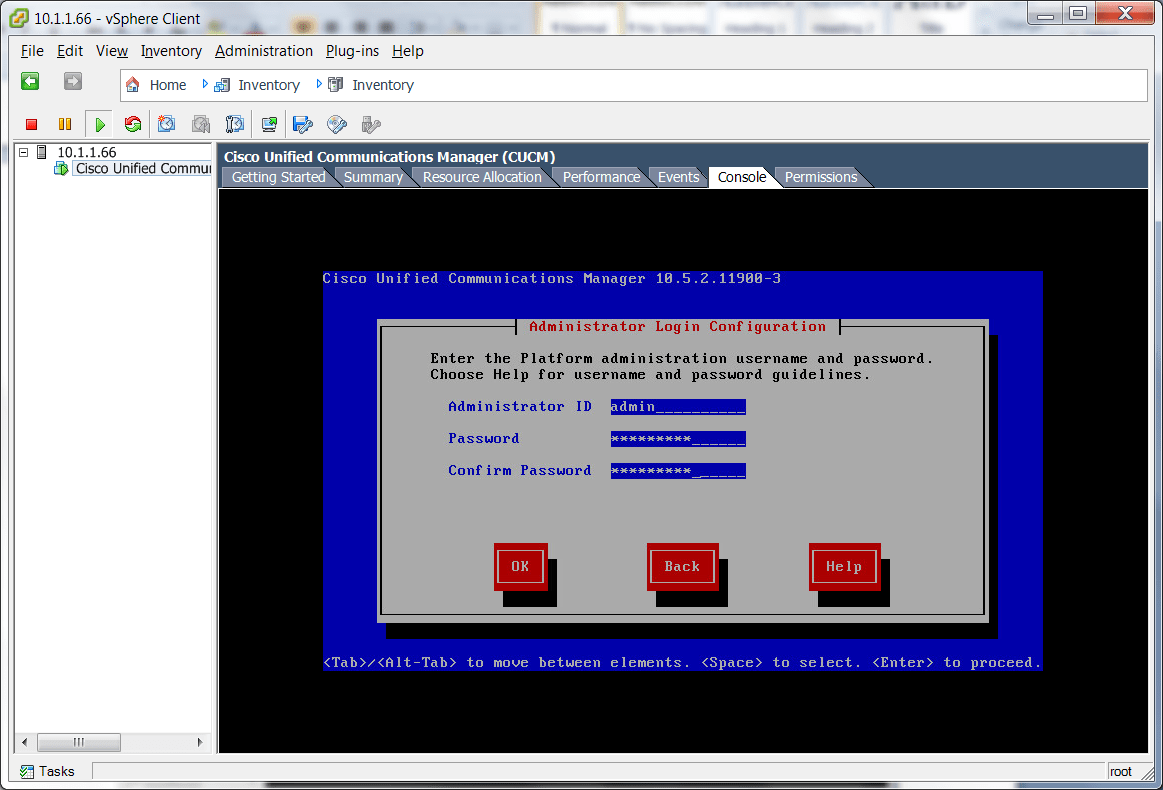
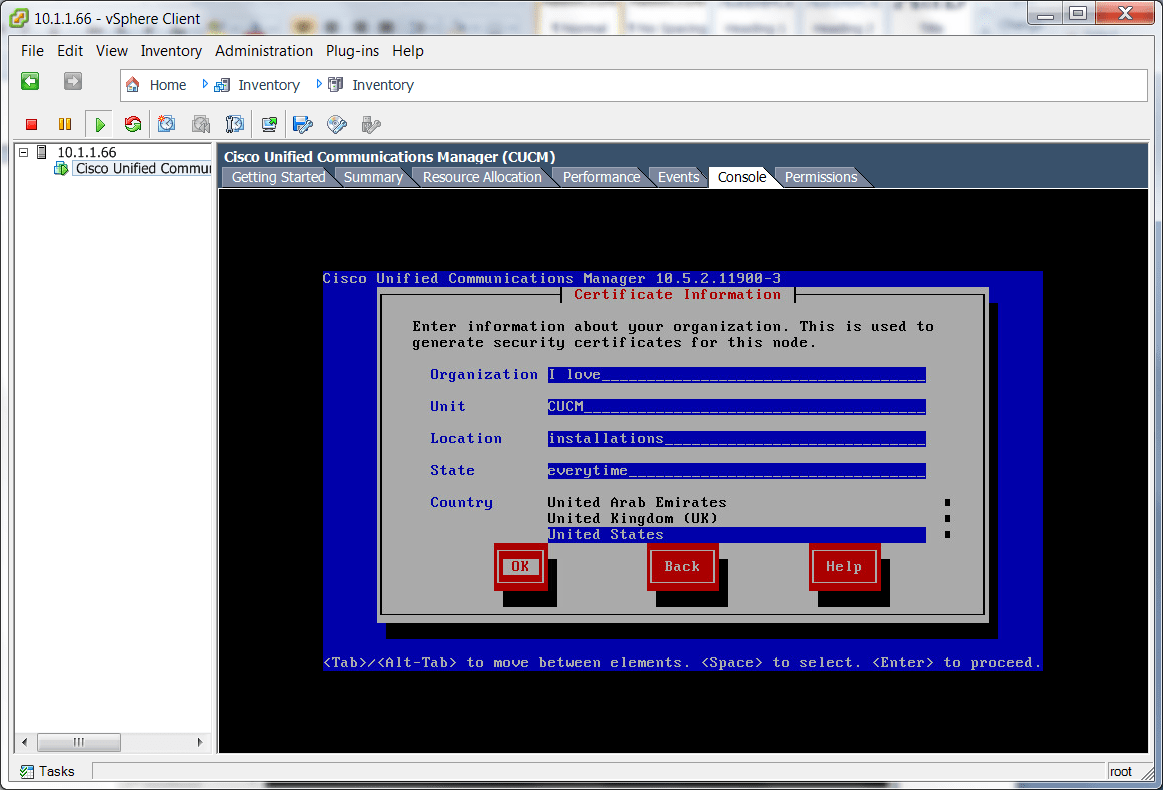
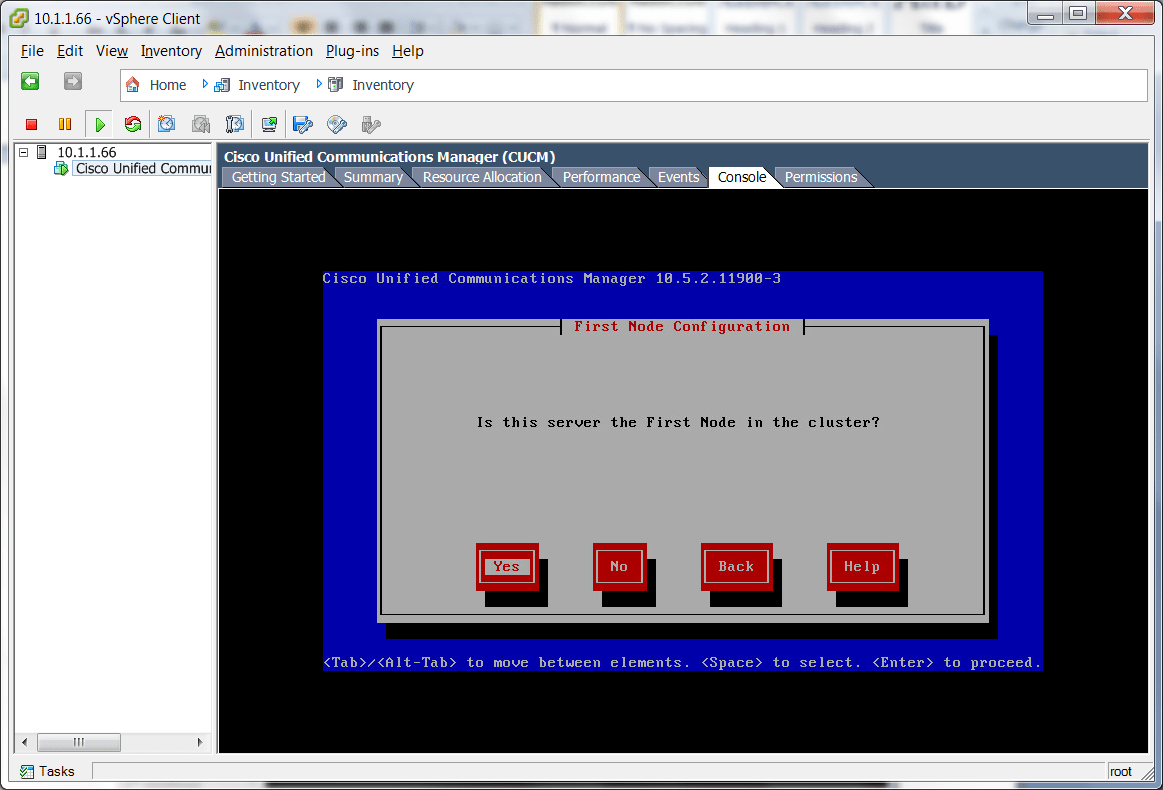
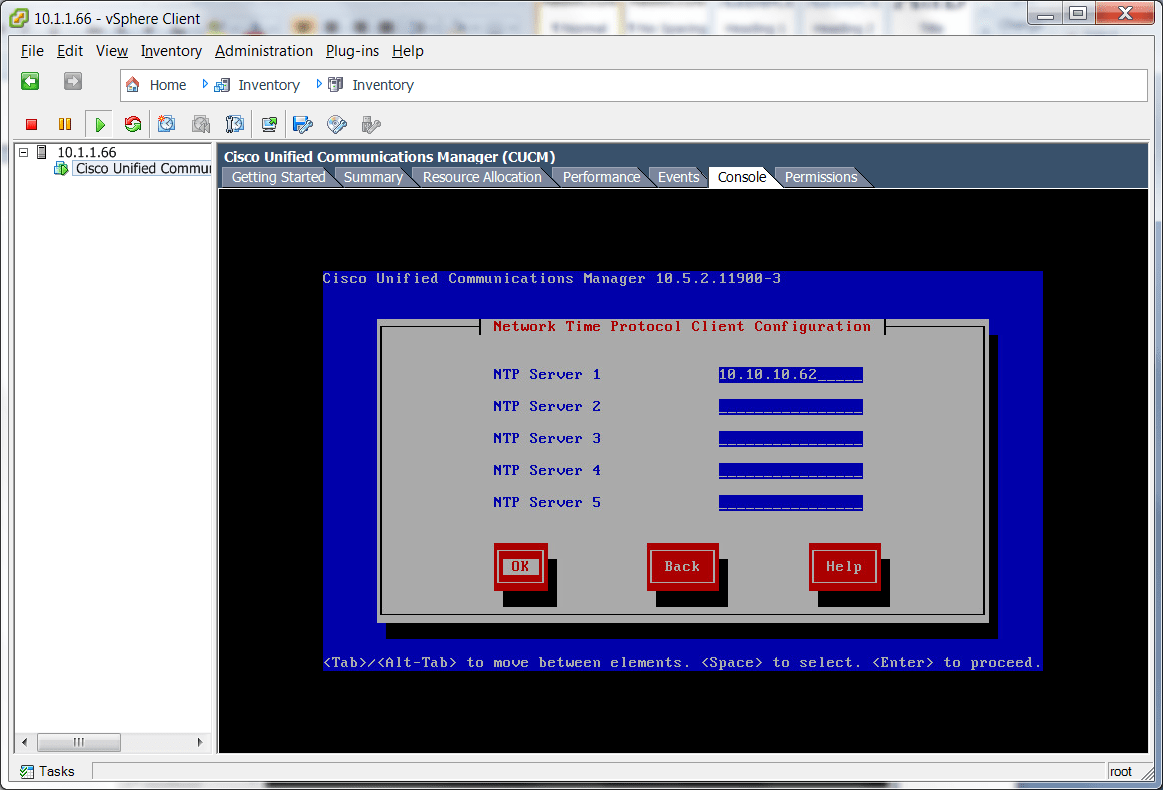
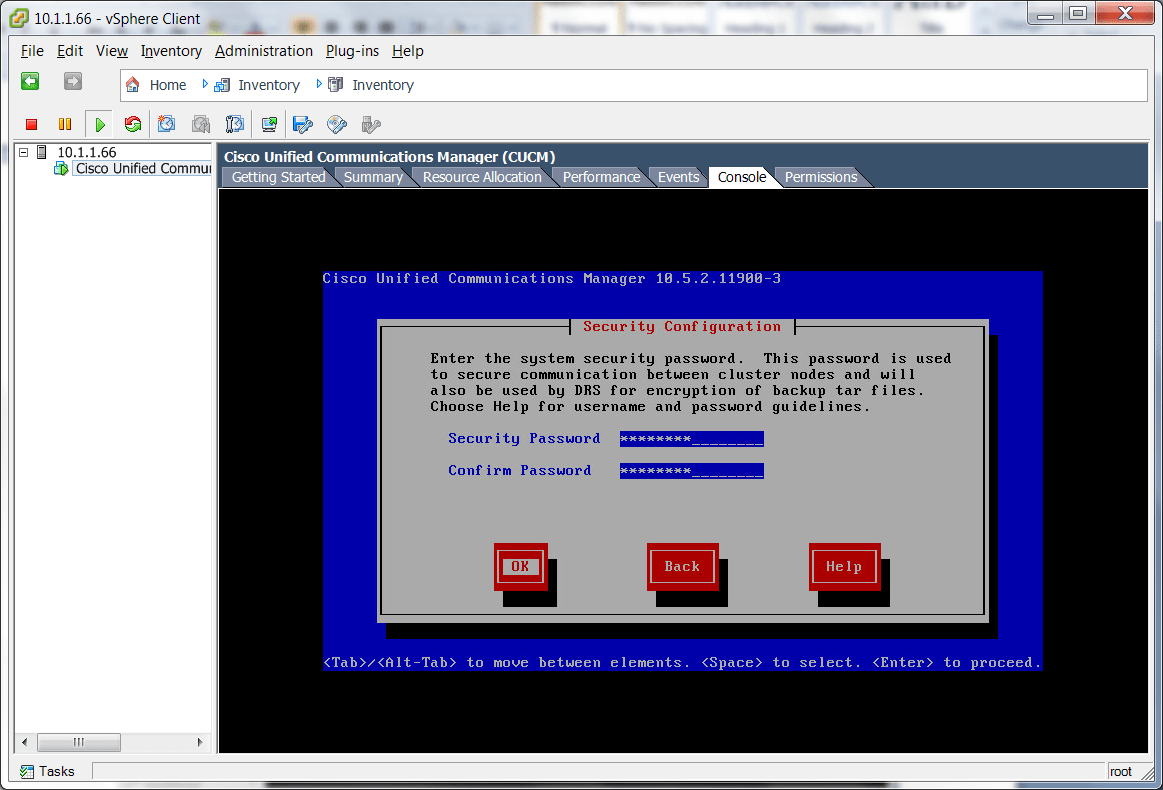
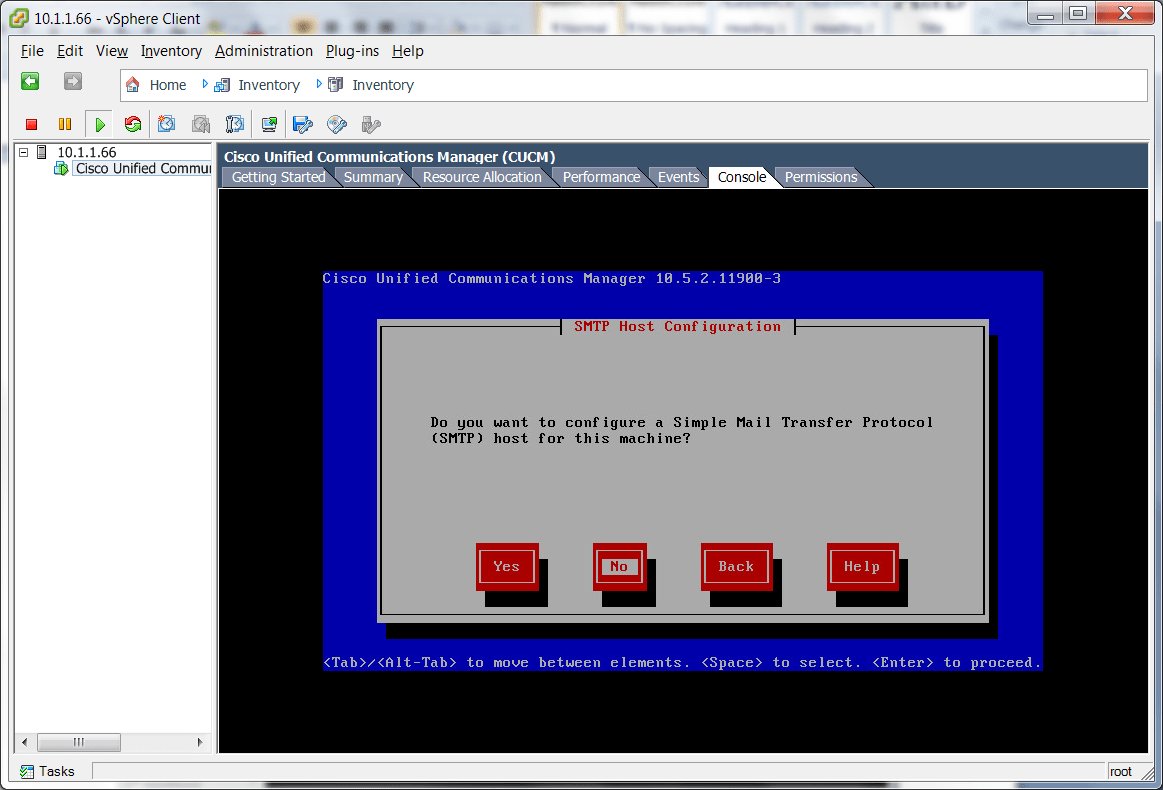
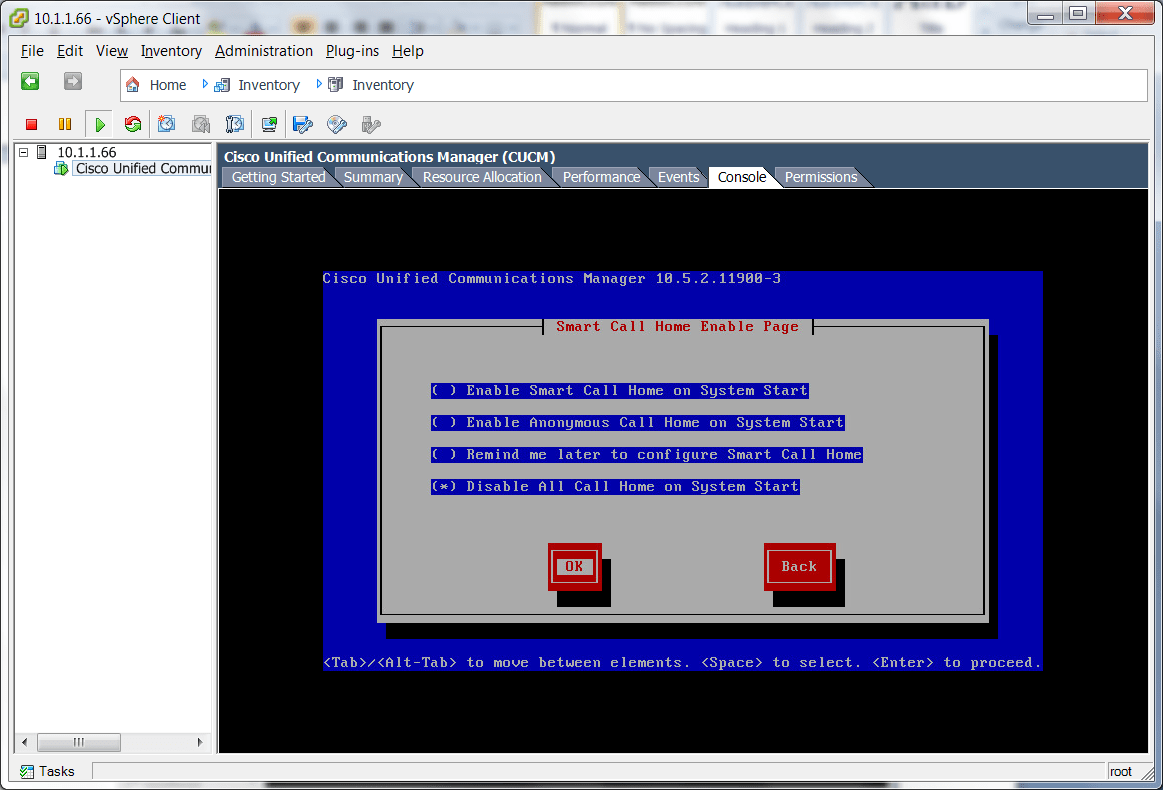
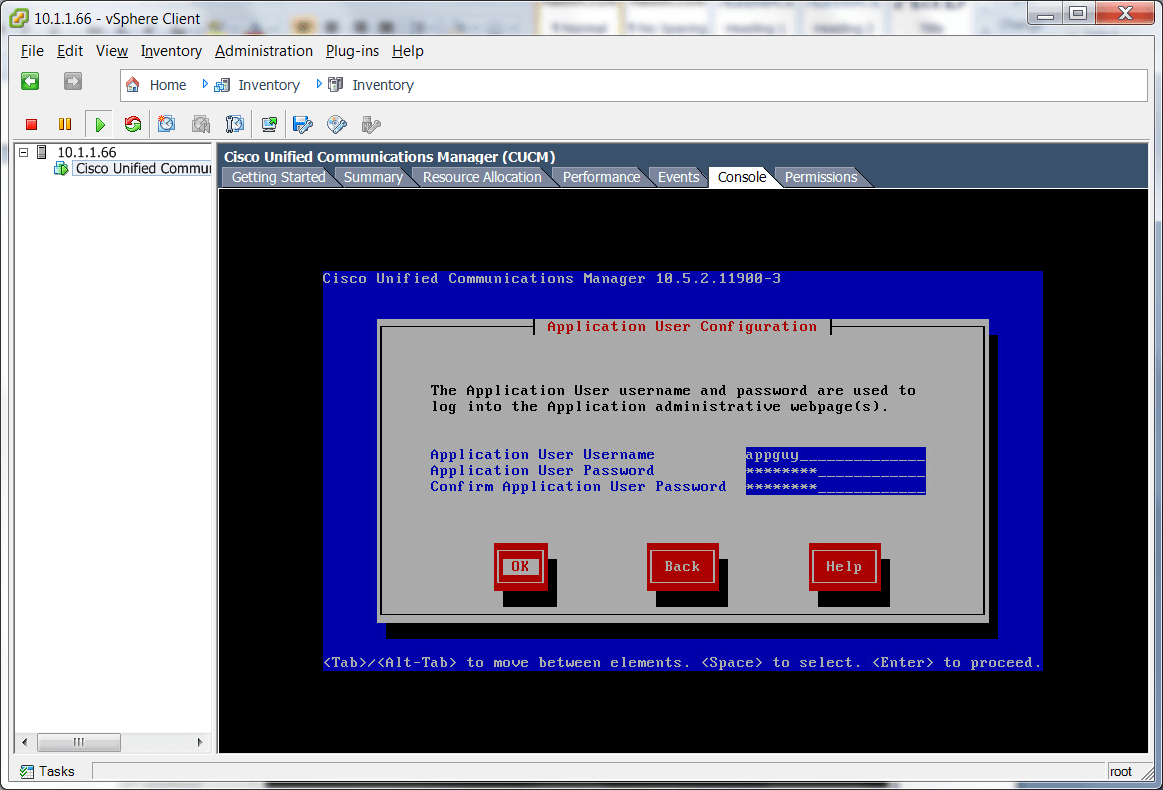
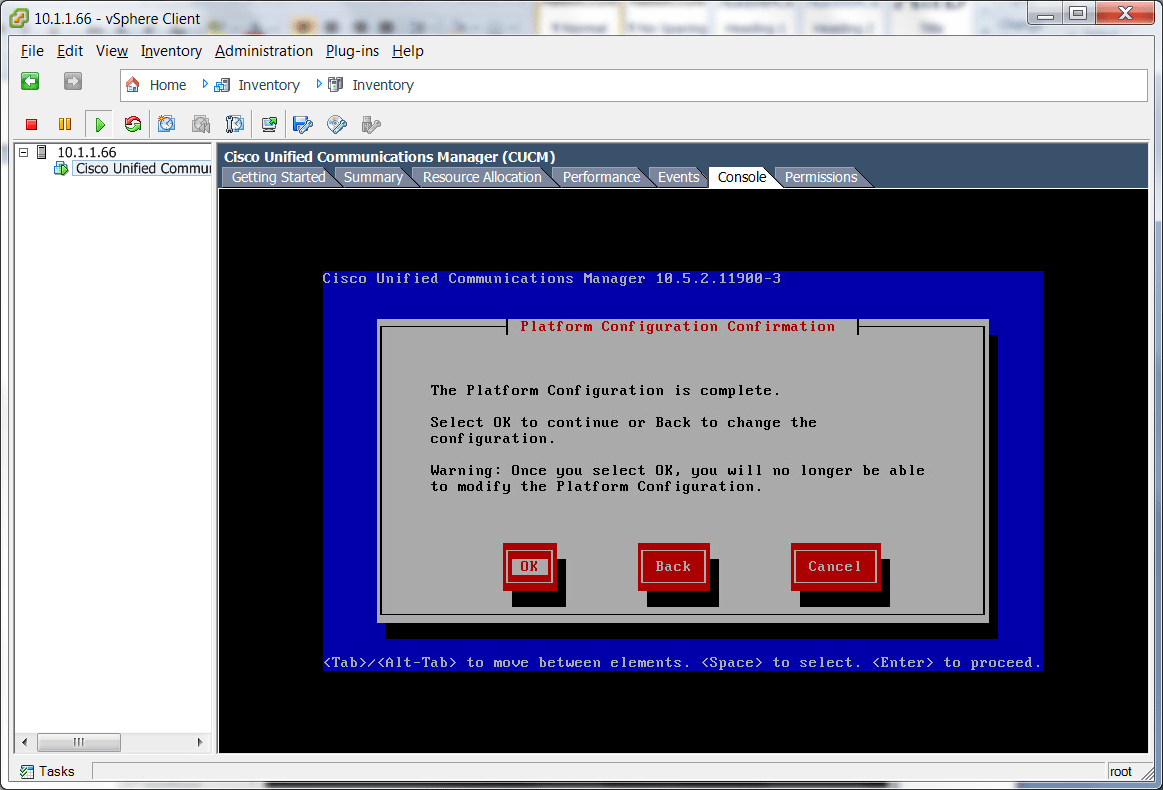
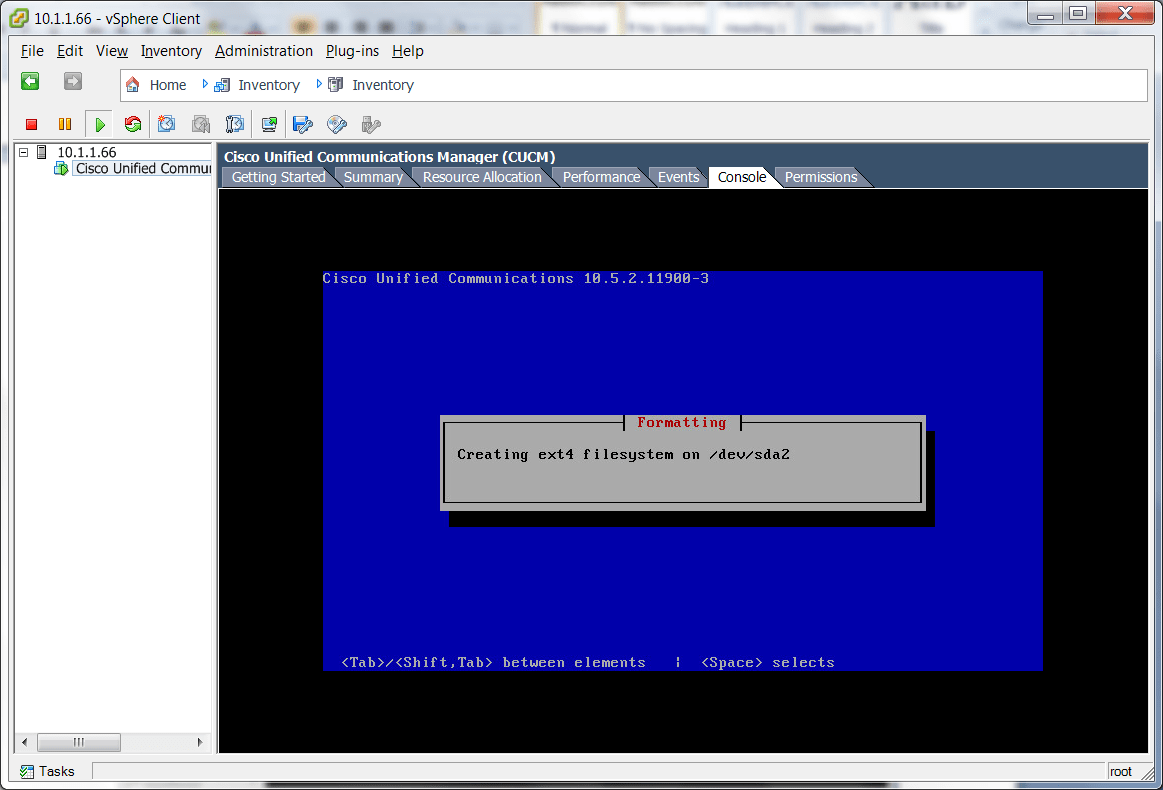
- After a successful boot, follow the installer prompts…
– You will be asked some site specific stuff, be prepared, and record passwords! - Wait for the installer to finish. Don’t forget to uncheck CD “Connect at power on” check box.
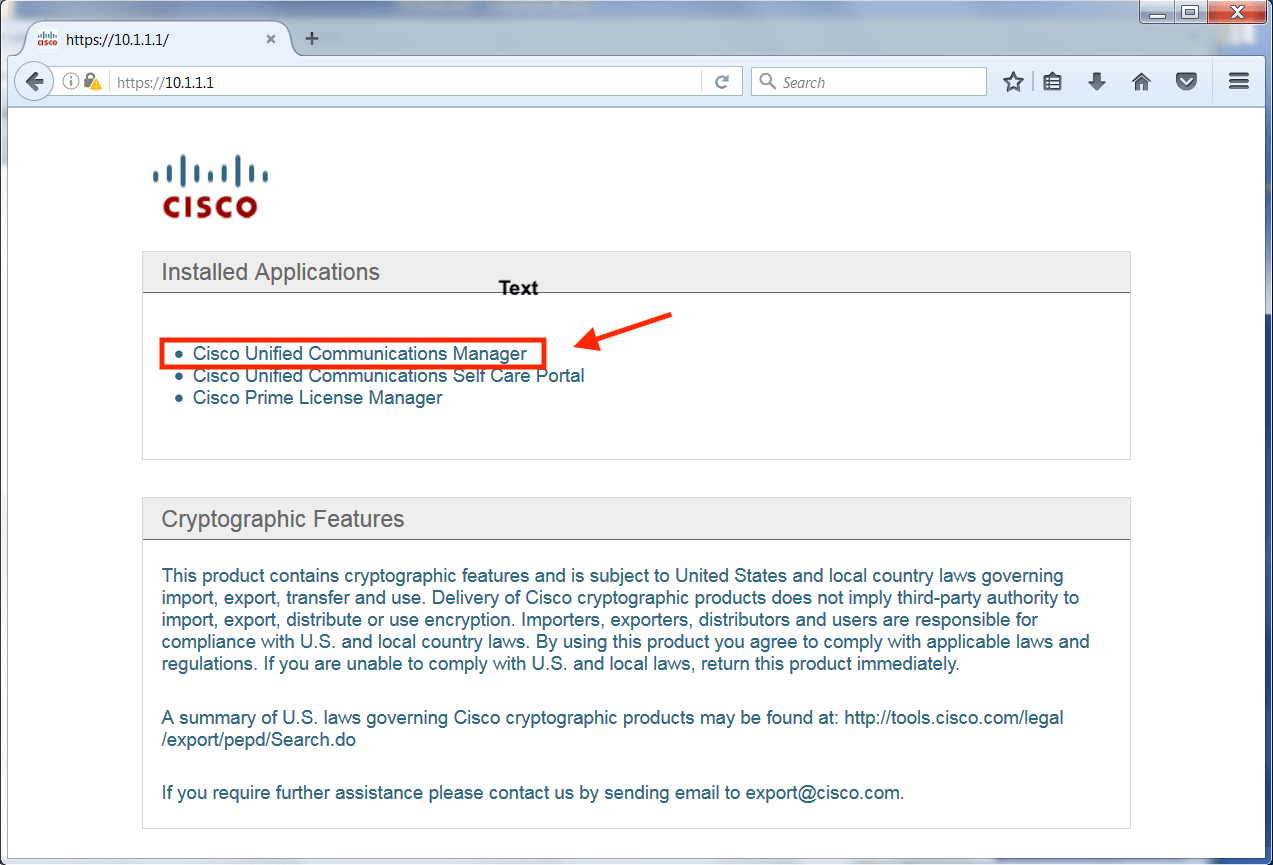
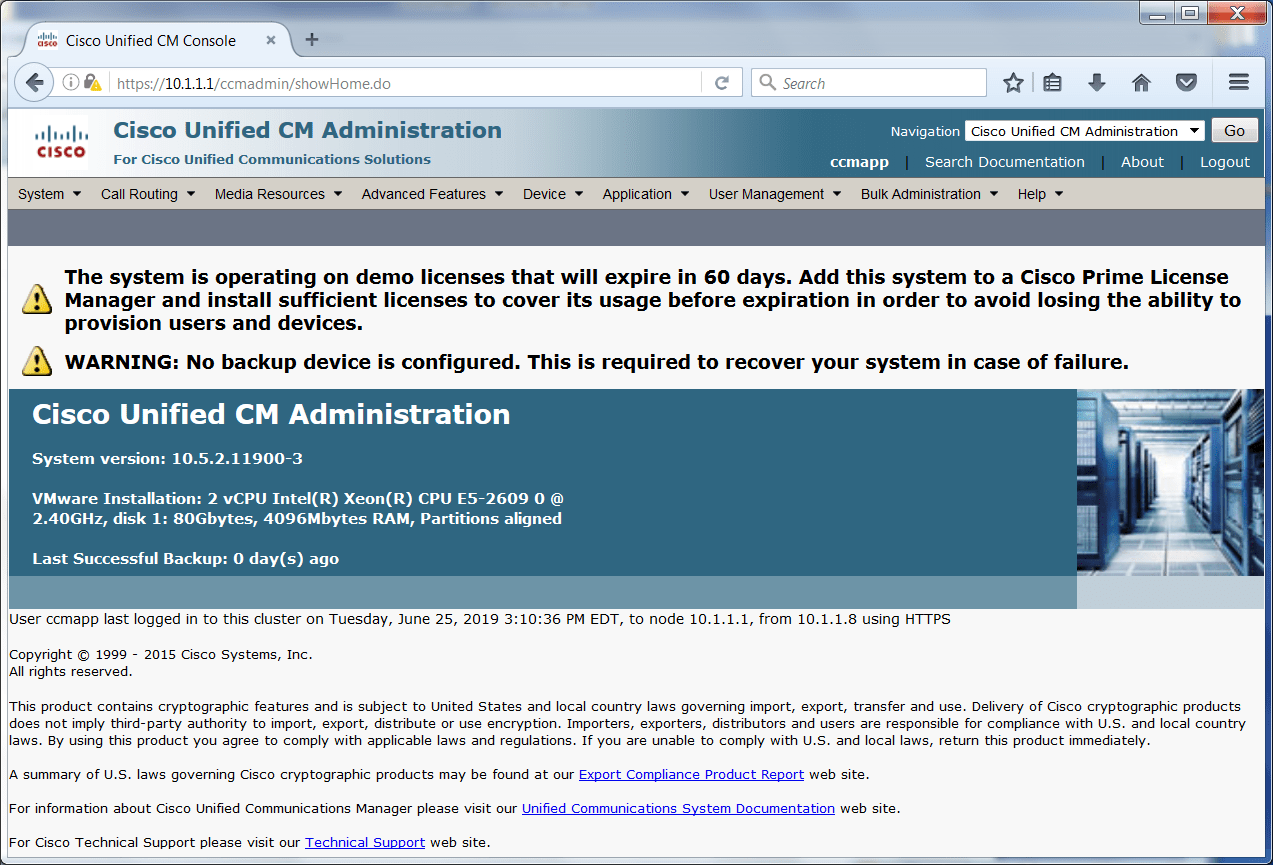
- Wait for login prompt in console. You should now be able to ping/logon to CUCM in a browser.
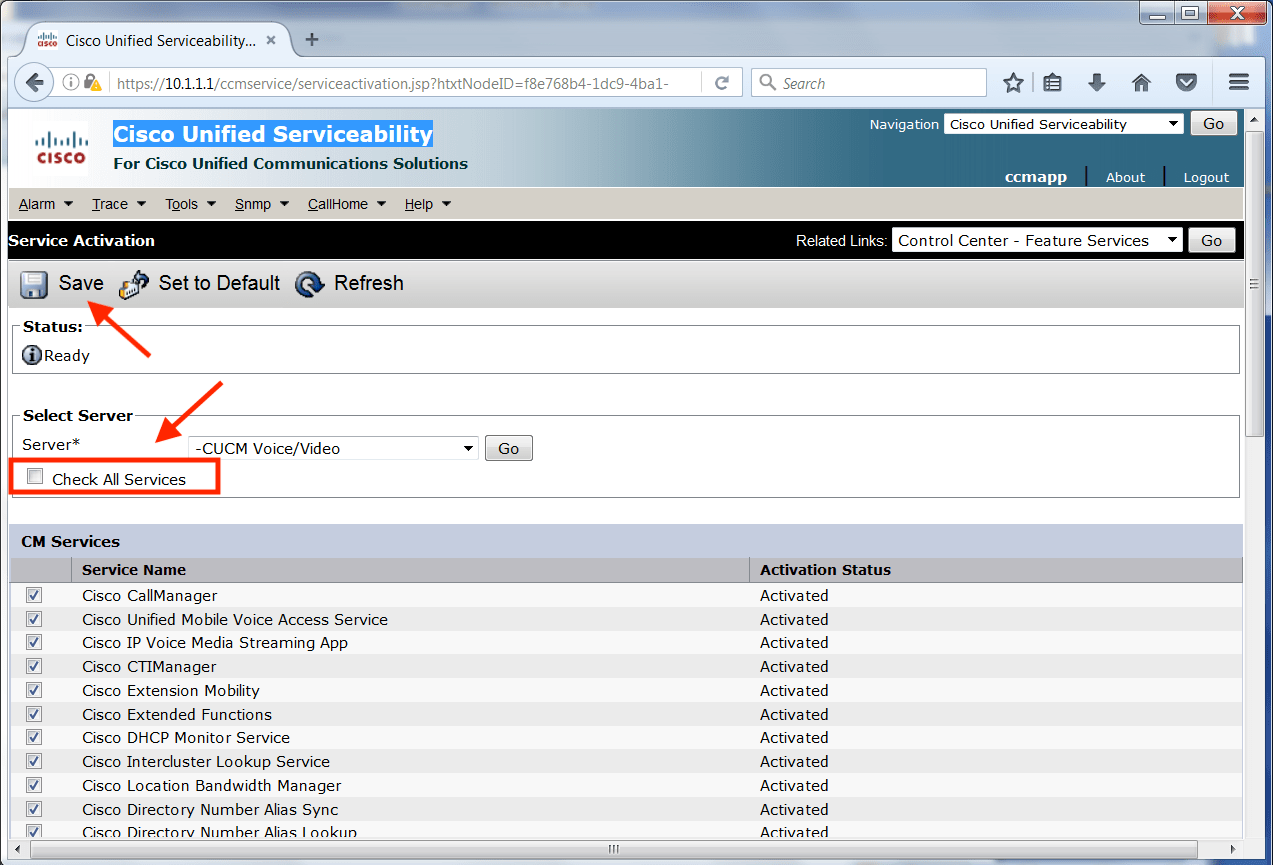
- Select “Cisco Unified Serviceability” from the top right Navigation drop down
- Goto: Tools ➤ Service Activation
- Check all appropriate services for site, eg: Cisco CallManager, and Cisco TFTP, and Save.
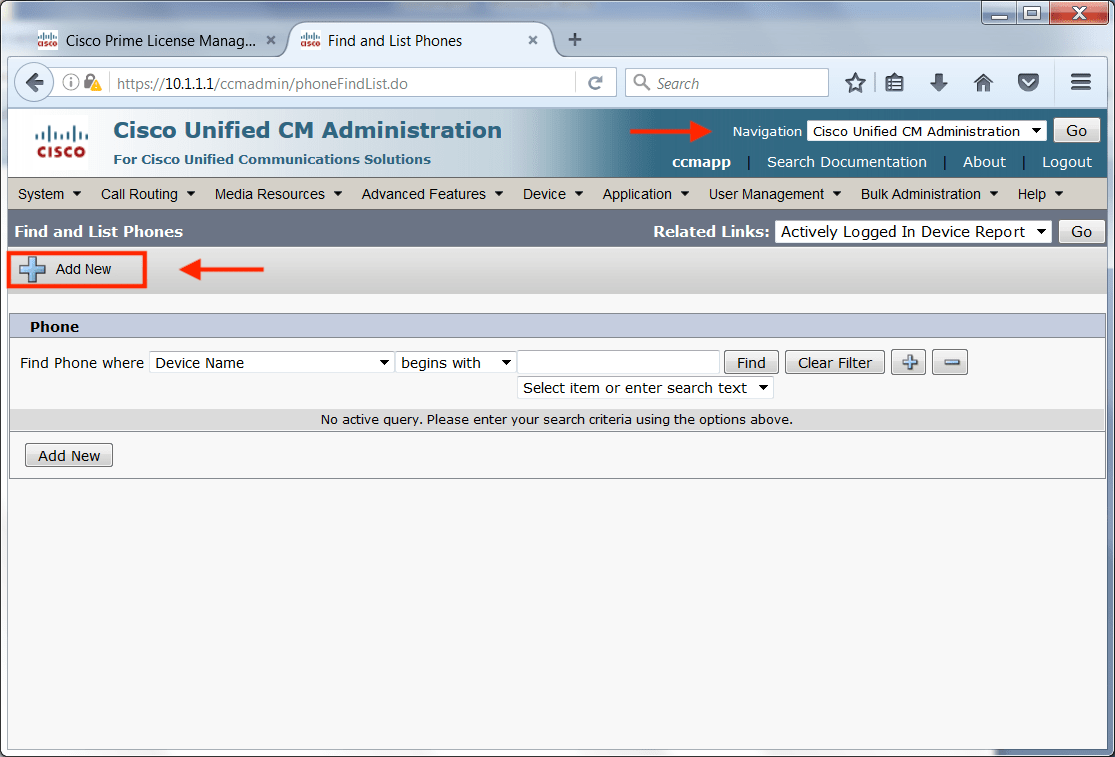
- After setup is complete, you should be able to add a phone in CM Administration (last slide).
Screen shots:
 ❮❯
❮❯
 Share
Share